Distributed Workers
Overview
The HPE Morpheus Software Worker is a separately deployed service that can proxy Cloud and Agent traffic, route console and VDI sessions, and act as a quorum witness for supported HVM clusters. A single Worker runtime can provide more than one capability, but each capability uses a specific registration and key in HPE Morpheus Software.
Distributed Workers, including Workers used as HVM quorum witnesses, are available in VM Essentials, Advanced, and Enterprise. The VDI Gateway use case requires an Advanced or Enterprise license.
Capability |
Registration |
Worker configuration |
Assignment and traffic path |
|---|---|---|---|
Cloud API proxy and Agent relay |
Distributed Worker in Administration > Integrations > Distributed Workers |
|
Select the Worker on a supported Cloud. The Worker opens an outbound connection to the HPE Morpheus Software appliance and relays traffic to resources it can reach. |
Console gateway |
VDI Gateway in Tools > VDI Pools > VDI Gateways |
|
Select the gateway on a Network, Cloud, or as Default Console Gateway in Administration > Settings > Appliance. Browser console traffic is redirected to the gateway. |
VDI gateway |
VDI Gateway in Tools > VDI Pools > VDI Gateways |
|
Assign the gateway to a VDI Pool. User desktop sessions for that Pool are redirected to the gateway. |
HVM quorum witness |
Distributed Worker in Administration > Integrations > Distributed Workers |
|
Select the Worker as the cluster witness. Cluster Hosts contact the Worker URL for quorum arbitration. For two-Host GFS2 with no Site Groups, see Two-Node Clusters with a Witness. For stretch clusters with Site Groups, see Stretch Clusters & Witness Nodes. |
The gateway API key and Distributed Worker key are independent. Configure only worker['worker_key'] for Distributed Worker and witness use, only worker['apikey'] for console and VDI gateway use, or both keys to enable combined roles on one runtime. A console gateway is not a separate runtime mode; it is a VDI Gateway registration selected for console routing.
Use separate Worker deployments when gateway sessions, Cloud proxy traffic, and quorum witness traffic require different network zones, independent maintenance windows, fault isolation, or capacity scaling. If roles are combined, the Worker URL, certificates, firewall rules, and availability design must satisfy every enabled role.
Supported Cloud Types
The following Cloud/Zone types have established Distributed Worker Cloud API proxy and Agent relay support:
vmware
vmwareCloudAws
nutanix
openstack
xenserver
macstadium
hvm
scvmm
hyperv
HVM, SCVMM, and Hyper-V clouds can be managed remotely through Distributed Workers. When a Worker is assigned to an HVM, SCVMM, or Hyper-V Cloud, Cloud API traffic and Agent relay communication are proxied through the Worker. Note the following:
An HVM appliance image based on Ubuntu 24.04 is available beginning with HPE Morpheus Software 8.0.6.
A Distributed Worker can also serve as an HVM quorum witness beginning with HPE Morpheus Software 9.0. Witness traffic is a separate cluster quorum role in addition to Cloud API proxy support.
For SCVMM and Hyper-V, the Worker proxies WinRM-based API calls and Agent relay traffic to the SCVMM controller host.
Installation
A distributed worker VM is installed and configured similarly to a HPE Morpheus Software appliance via rpm or deb package.
Note
Package URLs for the distributed worker are available at https://myenterpriselicense.hpe.com in the downloads section.
Note
The distributed worker requires that the HPE Morpheus Software appliance has a trusted SSL certificate. This can be accomplished by configuring a public trusted SSL certificate on the HPE Morpheus Software appliance (or load balancer) or ensure the certificate and chain are added to the Java Keystore of the Distributed Worker to trust the certificate.
Requirements
OS |
Version(s) |
|---|---|
Amazon Linux |
2 |
CentOS |
7.x, 8.x |
Debian |
10, 11 |
RHEL |
7.x, 8.x |
SUSE SLES |
12 |
Ubuntu |
18.04, 20.04, 22.04 |
Note
Ubuntu 24.04 package support for a directly installed Distributed Worker is not established by the available package policy and is therefore not listed. The Worker container has its own Alpine-based runtime; this does not establish a supported Ubuntu 24.04 host combination. Use only a release-approved package or container deployment.
Memory: 4 GB RAM minimum recommended
Storage: 10 GB storage minimum recommended. Storage is required for installation packages and log files
CPU: 4-core minimum recommended
Network connectivity to the HPE Morpheus Software appliance over TCP 443 (HTTPS)
Inbound connectivity from browsers when the Worker is used as a console or VDI gateway
Inbound connectivity from every participating HVM Host when the Worker is used as a witness
Superuser privileges via the
sudocommand for the user installing the HPE Morpheus Software worker packageAccess to base
yumoraptrepos. Access to Optional RPM repos may be required for RPM distros
Important
In order to proxy VMware vCenter Cloud traffic through a Distributed Worker, you must have a static public DNS entry for the internal IP address of the vCenter appliance. If this is not done, everything may appear to be working properly when configuring the Cloud but problems will arise at provision time. This is not a HPE Morpheus Software limitation but is a limitation of the VMware SDK client which does not natively support proxies.
Download the appropriate package from HPE Morpheus Software Hub based on your target Linux distribution and version for installation in a directory of your choosing. The package can be removed after successful installation.
wget https://downloads.morpheusdata.com/path/to/morpheus-worker-$version.distro
Validate the package checksum as compared with the values indicated on Hub. For example:
sha256sum morpheus-worker-$version.distro
Next, install the package using your selected distribution’s package installation command and your preferred options. Example, for RPM:
rpm:
$ sudo rpm -ihv morpheus-worker-$version.$distro

Preparing...                          ################################# [100%]
Updating / installing...
   1:morpheus-worker-x.x.x-1.$distro    ################################# [100%]
Thank you for installing Morpheus Worker!
Configure and start the Worker by running the following command:

sudo morpheus-worker-ctl reconfigure
Configuration
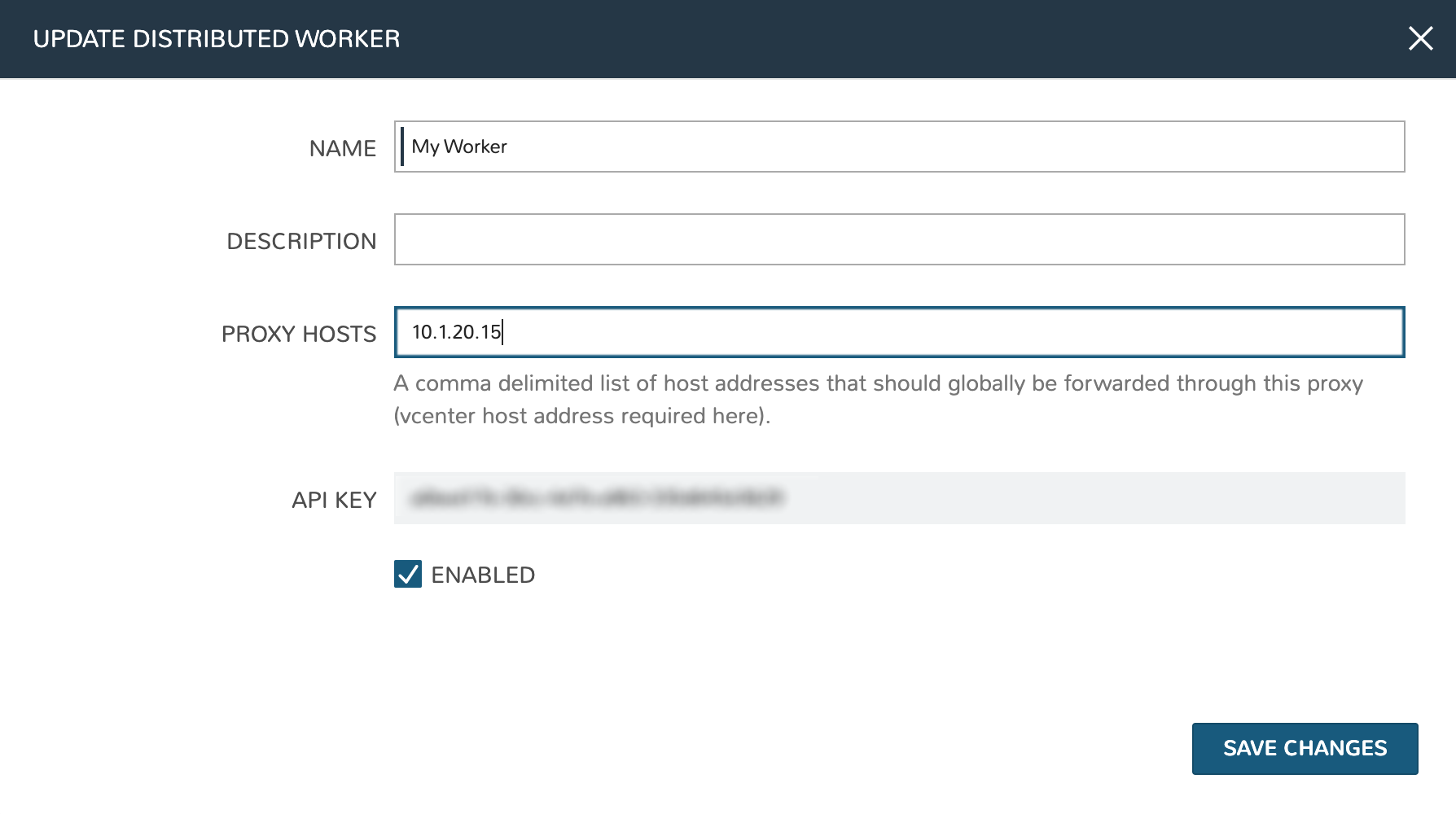
With the package installed, we need to add a new distributed worker in HPE Morpheus Software UI. Distributed workers are added in Administration > Integrations > Distributed Workers. To create one, populate the following fields:
NAME: A name for the distributed worker in HPE Morpheus Software
DESCRIPTION: An optional description for the distributed worker
PROXY HOSTS: A comma-delimited list of global proxy hosts, any endpoint listed here will be proxied through the HPE Morpheus Software worker. For VMware, you must list the host addresses for any vCenter you wish to proxy through the worker. Xen hosts and PowerVC hosts must be listed here as well. Other Cloud types which are supported by the HPE Morpheus Software worker need only have the worker configured on the Edit Cloud modal (Infrastructure > Clouds > Selected Cloud > Edit button)
ENABLED: When marked, the selected worker is available for use
Important
The proxy host URL entered in the Worker configuration must match the URL set in the Cloud configuration. That is, if you use the URL in the Cloud configuration you must also use it in the Worker configuration. The reverse is also true, if an IP address is used in the Cloud configuration, that should be used in the Worker configuration as well. There are also configuration considerations that must be made for proxying vCenter Cloud traffic through a Distributed Worker. See the “IMPORTANT” box in the “Requirements” section for additional details.
After clicking SAVE CHANGES, an API key is generated and displayed. Make note of this as it will be needed in a later configuration step.
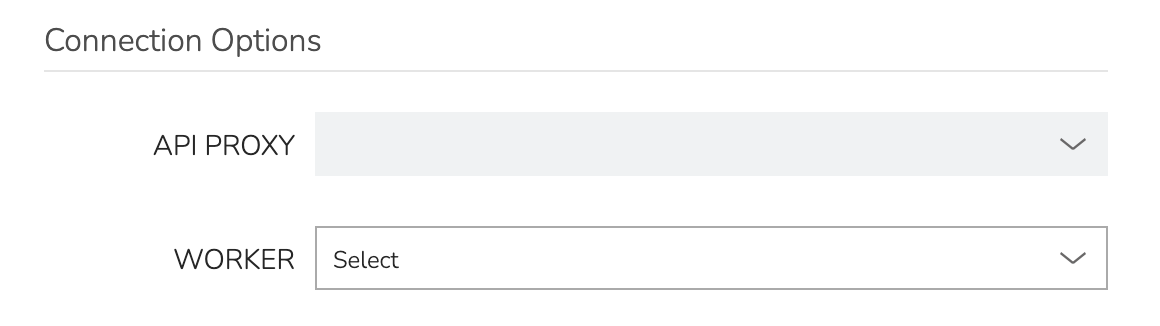
With the worker configured in HPE Morpheus Software, the next step is to update supported Cloud integrations which should be proxied through the worker. Select the desired Cloud from the Clouds List Page (Infrastructure > Clouds) and click EDIT from the chosen Cloud’s Detail Page. Within the Connection Options section, choose a configured worker from the WORKER dropdown menu. Click SAVE CHANGES.
With the API key in hand and configuration complete in HPE Morpheus Software UI, head back to the worker box. Configure the gateway by editing /etc/morpheus/morpheus-worker.rb and updating the following:
Distributed Worker or witness only:
worker_url = 'https://worker.example.com'
worker['appliance_url'] = 'https://morpheus.example.com'
worker['worker_key'] = 'DISTRIBUTED WORKER KEY'
Console or VDI gateway only:
worker_url = 'https://worker.example.com'
worker['appliance_url'] = 'https://morpheus.example.com'
worker['apikey'] = 'VDI GATEWAY API KEY'
Combined Distributed Worker and gateway roles:
worker_url = 'https://worker.example.com' # URL used to reach this Worker
worker['appliance_url'] = 'https://morpheus_appliance_url' # The resolvable URL or IP address of Morpheus appliance which the worker can reach on port 443
worker['apikey'] = 'VDI GATEWAY API KEY'
worker['worker_key'] = 'DISTRIBUTED WORKER KEY' # Distributed Worker API Key from Administration > Integrations > Distributed Workers configuration
worker['proxy_address'] = 'http://proxy.address:1234' # For environments in which the worker must go through a proxy to communicate with the Morpheus appliance or other resources, configure the address
worker['no_proxy'] = 'vcenter.example.com,192.168.xx.xx' # A comma-separated list of resources that should be accessed directly and not through the proxy
Note
worker_url identifies the Worker service. worker['appliance_url'] identifies the HPE Morpheus Software appliance. Do not interchange them. By default, worker_url uses the Worker’s hostname. For gateway or witness use, set it to a stable URL that every required client can resolve, reach, and trust.
After all configuration options have been set, run sudo morpheus-worker-ctl reconfigure to install and configure the worker, nginx and guacd services:
sudo morpheus-worker-ctl reconfigure
The worker reconfigure process will install and configure the worker, nginx and guacd services and dependencies.
Tip
If the reconfigure process fails due to a missing dependency, add the repo that the missing dependency can be found in and run
Note
Configuration options can be updated after the initial reconfigure by editing /etc/morpheus/morpheus-worker.rb and running sudo morpheus-worker-ctl reconfigure again.
Once the installation is complete the morpheus worker service will automatically start and open a web socket with the specified HPE Morpheus Software appliance. To monitor the startup process, run morpheus-worker-ctl tail to tail the logs of the worker, nginx and guacd services. Individual services can be tailed by specifying the service, for example morpheus-worker-ctl tail worker
Verify package service health before assigning traffic:
sudo morpheus-worker-ctl status
sudo morpheus-worker-ctl tail worker
Container Installation
The Worker is also published as the morpheusdata/morpheus-worker container image. Use a version tag approved for the HPE Morpheus Software Manager release. Do not use latest for production because it can point to a different product version. The examples below use the confirmed 9.0.2 tag; replace it when deploying with another supported Manager release. During Docker Hub maintenance, a valid tag may temporarily be absent from the web or API tag listing.
The image exposes HTTP on port 8080 and HTTPS on port 8443. The following variables configure its roles:
Variable |
Required |
Purpose |
|---|---|---|
|
Yes |
URL of the HPE Morpheus Software appliance that the Worker connects to. |
|
For Distributed Worker or witness roles |
API key generated by the Distributed Worker record in Administration > Integrations > Distributed Workers. |
|
For console or VDI gateway roles |
API key generated by the VDI Gateway record in Tools > VDI Pools > VDI Gateways. Omit it for Worker-only deployments. |
|
No |
Set to |
|
With PKCS#12 TLS |
Alias and password for |
|
No |
Outbound HTTPS proxy used by the Worker’s HTTP client. |
Set WORKER_IMAGE_TAG to the approved tag before running these examples:
export WORKER_IMAGE_TAG=9.0.2
Distributed Worker only:
docker run -d --name morpheus-worker \
  -p 8080:8080 \
  -e MORPHEUS_URL=https://morpheus.example.com \
  -e MORPHEUS_WORKER_KEY=<distributed-worker-key> \
  morpheusdata/morpheus-worker:${WORKER_IMAGE_TAG}
A witness also uses MORPHEUS_WORKER_KEY, but it must publish a trusted endpoint reachable from every participating Host. Use the production HTTPS example below for a witness container.
Console or VDI gateway only with a test self-signed listener:
docker run -d --name morpheus-worker \
  -p 8443:8443 \
  -e MORPHEUS_URL=https://morpheus.example.com \
  -e MORPHEUS_KEY=<vdi-gateway-key> \
  -e MORPHEUS_SELF_SIGNED=true \
  morpheusdata/morpheus-worker:${WORKER_IMAGE_TAG}
Combined Distributed Worker and gateway roles:
docker run -d --name morpheus-worker \
  -p 8443:8443 \
  -e MORPHEUS_URL=https://morpheus.example.com \
  -e MORPHEUS_WORKER_KEY=<distributed-worker-key> \
  -e MORPHEUS_KEY=<vdi-gateway-key> \
  -e MORPHEUS_SELF_SIGNED=true \
  morpheusdata/morpheus-worker:${WORKER_IMAGE_TAG}
For production HTTPS or witness use, mount a PKCS#12 certificate and omit MORPHEUS_SELF_SIGNED:
docker run -d --name morpheus-worker \
  -p 8443:8443 \
  -v /secure/path/cert.p12:/etc/certs/cert.p12:ro \
  -e MORPHEUS_URL=https://morpheus.example.com \
  -e MORPHEUS_WORKER_KEY=<distributed-worker-key> \
  -e MORPHEUS_SSL_ALIAS=<certificate-alias> \
  -e MORPHEUS_SSL_PASSWORD=<certificate-password> \
  morpheusdata/morpheus-worker:${WORKER_IMAGE_TAG}
After startup, verify that the container is running and healthy, that the configured Worker or gateway appears active in HPE Morpheus Software, and that clients for each enabled role can reach the published URL:
docker ps --filter name=morpheus-worker
docker inspect --format '{{.State.Health.Status}}' morpheus-worker
docker logs morpheus-worker
The image health check verifies the bundled Guacamole service. Also validate the HPE Morpheus Software registration and the end-to-end traffic path for each enabled role. Upgrade by validating a new release-compatible tag, recreating the container with the same registration keys and certificate configuration, and repeating the role-specific checks.
Witness Configuration
A Distributed Worker can provide quorum witness services for HVM 1.3 or later clusters using an HPE Shared File System (GFS2) datastore. This includes two-node GFS2 clusters and stretch clusters with site groups. For the complete two-node topology, deployment order, validation, failure behavior, and limitations, see Two-Node Clusters with a Witness.
The Worker URL on the Distributed Worker record is mandatory for witness use. HPE Morpheus Software uses this value to construct the witnessUrl sent to each cluster Host. Every participating Host must be able to resolve the URL, route to the Worker listener, and trust its TLS certificate. The Worker’s outbound connection to the HPE Morpheus Software appliance does not prove that Hosts can reach the witness.
Before assigning a witness:
Create the Distributed Worker record in Administration > Integrations > Distributed Workers and set Worker URL to the stable client-facing URL for the Worker.
Configure the runtime with the record’s
worker_keyorMORPHEUS_WORKER_KEY.Verify that the Worker shows as active in HPE Morpheus Software.
From every cluster Host, resolve the Worker URL and make an HTTPS connection to it. A successful TLS connection or HTTP response confirms the path; do not disable certificate validation in production.
Ensure firewalls and load balancers preserve the witness path and do not require interactive authentication.
For cluster assignment and quorum validation:
Two-Host GFS2 with no Site Groups: Two-Node Clusters with a Witness
Site Groups / multi-site stretch: Stretch Clusters & Witness Nodes
Highly-Available (HA) Deployment
If desired, multiple distributed worker nodes may be associated to the same HPE Morpheus Software appliance to eliminate a single point of failure should a distributed worker node go down. Configure each distributed worker node using the same worker key (process described in the prior section) and add redundancy using as many additional workers nodes as needed. When multiple worker nodes are using the same worker key, proxy calls will always go through the primary worker node when possible. The primary node is the first worker node configured using a specific worker key. When necessary, automatic failover will take place and another active worker node will be used. While proxy calls will always try to use the primary node when available, HPE Morpheus Software Agent communications can be balanced equally across worker nodes by placing a VIP in front of your distributed workers.