VMware Permissions
When integrating VMware vCenter with HPE Morpheus Software, users must supply credentials for a vCenter account and HPE Morpheus Software will only have access privileges equal to the integrated account. Many users will choose to use a vCenter administrator account so that HPE Morpheus Software can freely do any function in vCenter without worrying about hitting access limits. Others, for security reasons, may want to restrict HPE Morpheus Software only to the minimum permissions it needs to perform its functions. Follow the guide in this section to configure a user with minimal permissions and associate it with the appropriate usage levels before using it to create a HPE Morpheus Software Cloud integration.
Create vCenter Users and Roles
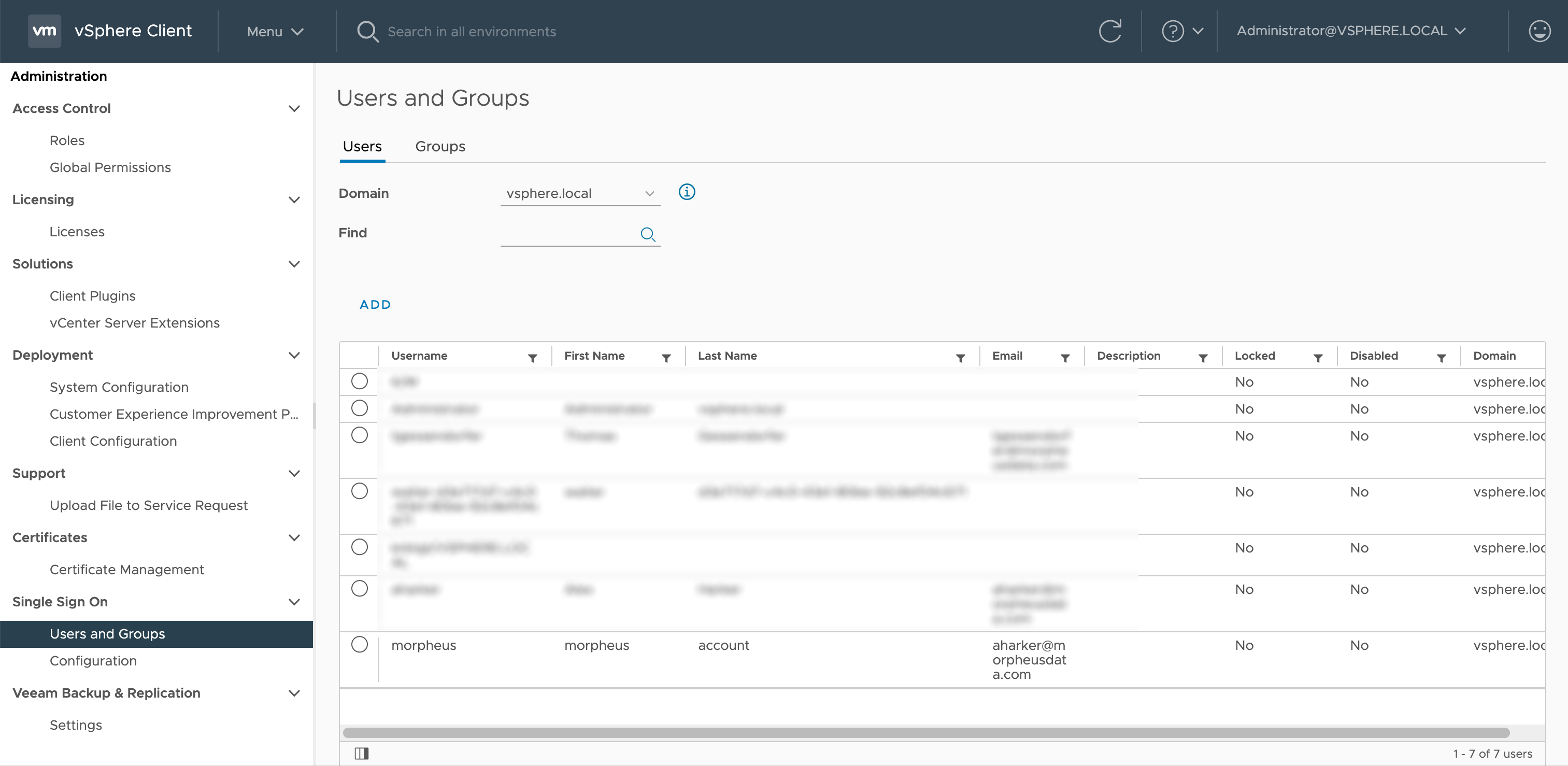
For this example, I’ve added a new local user to be my HPE Morpheus Software integration user (Menu > Administration > Users and Groups) but any existing user, whether locally-created or sourced from an identity integration (like Active Directory), works fine.
The next step is to create a Role (Menu > Administration > Roles). You can edit an existing Role to be sure it has the correct privileges, I’ve opted to create a new role and assign the correct privileges. Below the screenshot, take note of the complete set of required privileges. Once all privileges are set, name the Role (if it’s a new one) and click Finish.
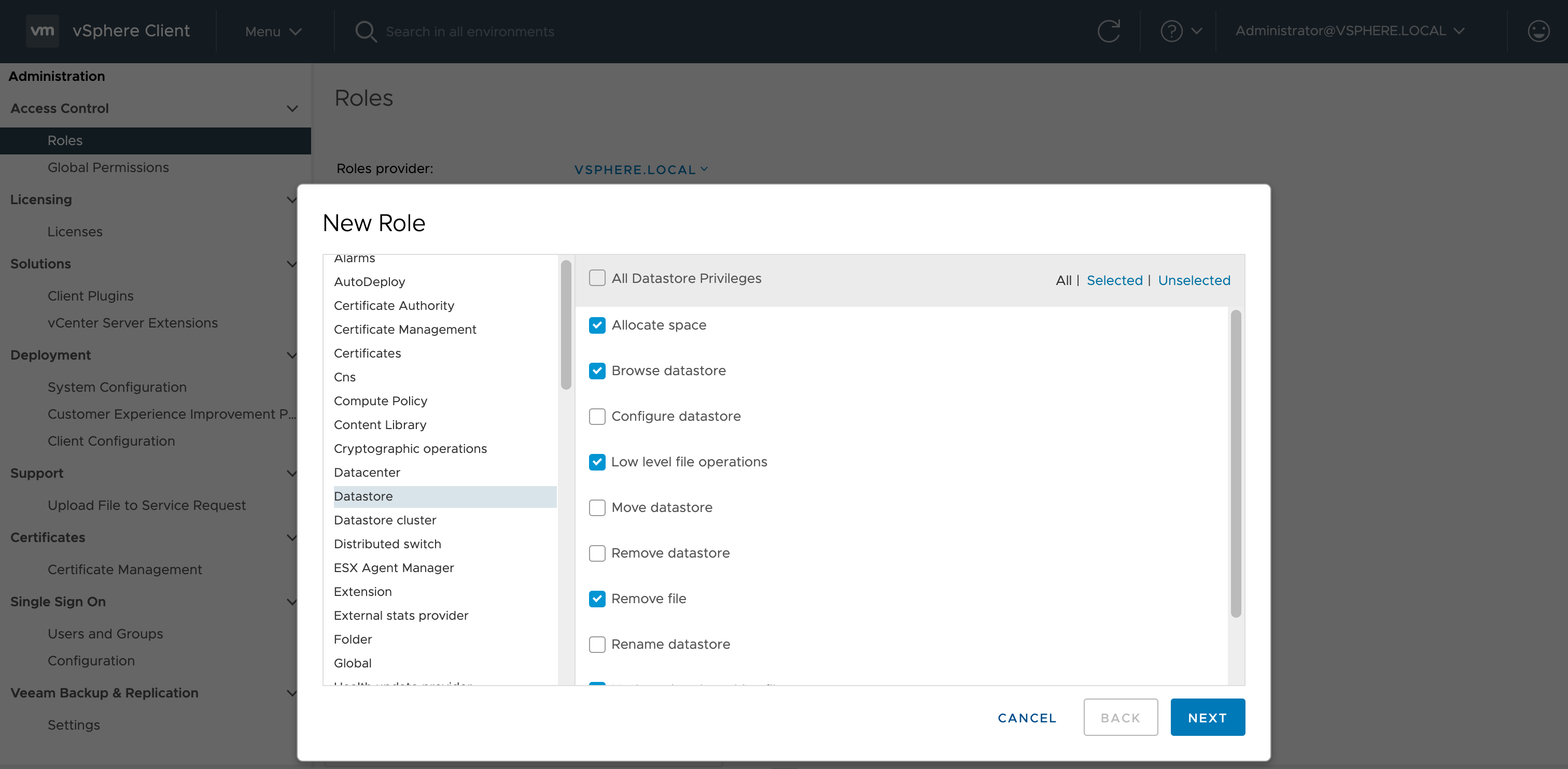
Privileges
Important
Build the role for the operations enabled in your environment and assign it only at the inventory objects where those operations are required. Do not grant Administrator to troubleshoot a single VM. vTPM and encrypted-VM operations can require privileges that an unencrypted-VM test never exercises.
- Content Library
All Content Library privileges
- Cryptographic operations for encrypted or vTPM VMs
Clone
Direct Access
Migrate
The names above correspond to the vCenter Cryptographic operations privileges reported in MORPH-6016 as Clone, Direct, and AccessMigrate. The report established that adding the set restored hypervisor-console access for a discovered Windows 11 vTPM VM; it did not isolate which individual privilege the console session consumed. Treat the set as a reported requirement for workflows that include console access, clone, or migration of encrypted/vTPM VMs, not as a requirement for every unencrypted VM.
Apply these privileges to the dedicated HPE Morpheus Software integration role at the smallest vCenter inventory scope containing the affected encrypted/vTPM VMs, with propagation only where child objects require it. Verify the role assignment inherited by the affected VM and test console, clone, and migration separately. If policy cannot permit the complete set, use vCenter task/event and HPE Morpheus Software logs to identify the denied operation and have the VMware/security owner approve the minimum privilege; do not broaden the role to Administrator.
- Datastore/Datastore Cluster
Allocate Space
Browse Datastore
Low Level file Operations
Remove File
Update virtual machine files
Update virtual machine metadata
- Distributed Switch
Port configuration operation
Port setting operation
- Global
Log Event
Manage custom attributes
Set custom attribute
- Network
Assign Network
Configure
Remove
- Resource
Apply recommendation
Assign vApp to resource pool
Assign virtual machine to resource pool
Migrate powered off virtual machine
Migrate powered on virtual machine
- Scheduled task
Create tasks
Modify task
Remove task
Run task
- Tasks
Create task
Update task
- Virtual Machine
Configuration (all)
Guest Operations (all)
Interaction (all)
Inventory (all)
Provisioning (all)
Service configuration (all)
Snapshot management (all)
vSphere Replication (all)
- vApp
Clone
Export
Import
- vSphere Tagging
Assign or Unassign vSphere Tag
Assign or Unassign vSphere Tag on Object
Create vSphere Tag
Create vSphere Tag Category
Delete vSphere Tag
Delete vSphere Tag Category
Edit vSphere Tag
Edit vSphere Tag Category
Modify UsedBy Field For Category
Modify UsedBy Field For Tag
privilege.InventoryService.Tagging.CreateScope.label
privilege.InventoryService.Tagging.DeleteScope.label
With the User and Role created, add permissions to associate the User and Role to the appropriate usage constructs. Navigate to the usage construct you wish to work with, navigate to the permissions tab, click the plus (+) button. In the screenshot below, I’m adding the permission for the vCenter usage construct. The complete list of usages and whether or not to mark the propagation box is below the image.
Note
For organization and security purposes, permissions can also be added to folders. This allows HPE Morpheus Software to see the folders and onboard any resources within them (if desired). Once the vCenter Cloud integration has been created in HPE Morpheus Software, you can view folders from the Cloud Detail Page (Infrastructure > Clouds > Selected Cloud > Resources Tab). By editing the folder here (Actions > Edit), folders can be set as the “Default” and/or the “Image Target”. When a folder is set as Default, this folder is pre-selected when provisioning new Instances into the Cloud. When a folder is set as the Image Target, HPE Morpheus Software will look into this folder to onboard VMware images into HPE Morpheus Software.
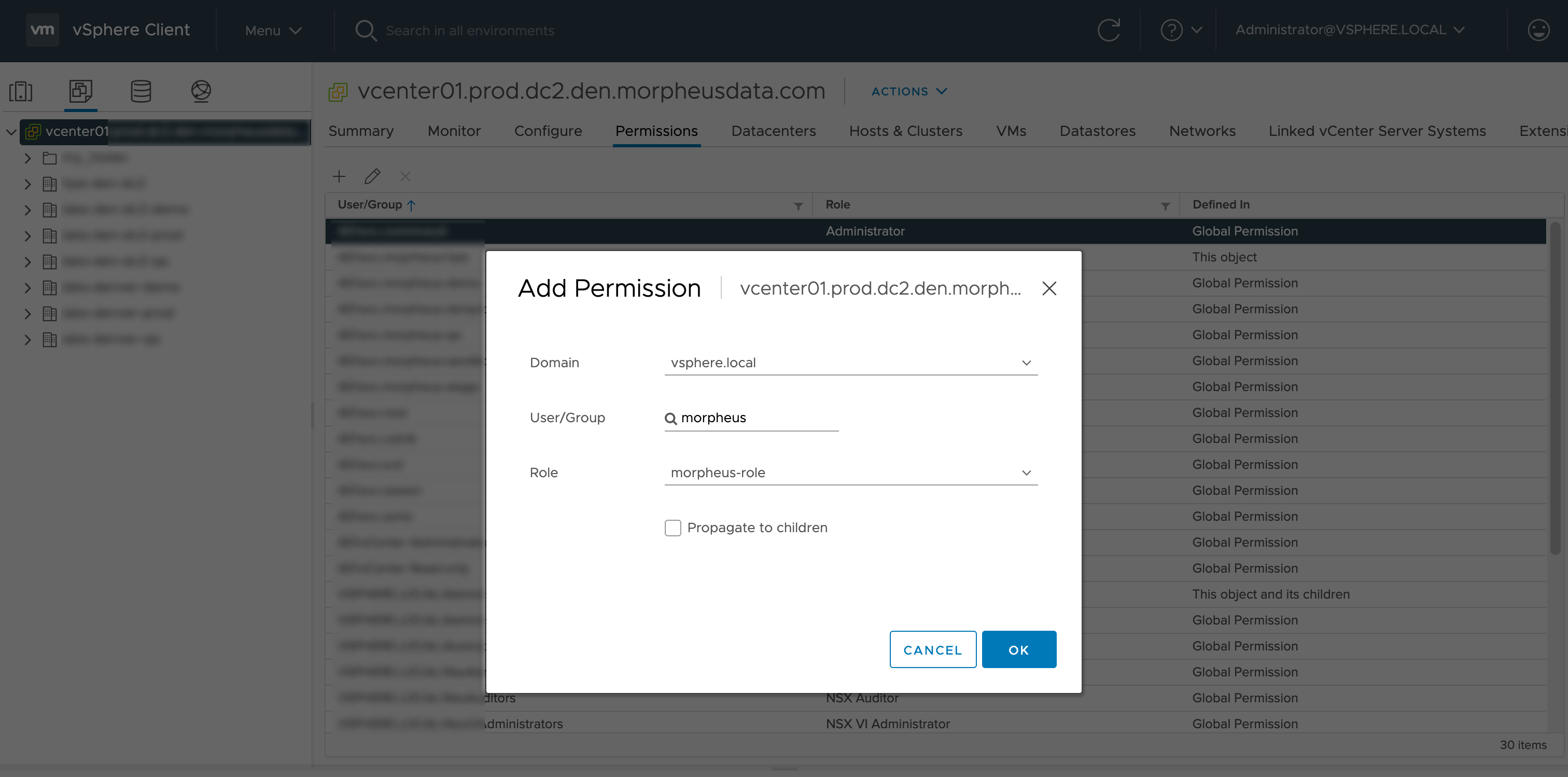
Usage
- vCenter
Non-Propagating
- Datacenter
Non-Propagating
- Cluster
Non-Propagating
- Host
Non-Propagating
- Datastore/Datastore Cluster
Propagating
After completing the above steps, all VMware Cloud functionality should be available in HPE Morpheus Software without running into permissions errors.