Active Directory
Overview
Active Directory is Microsoft’s primary authentication service. It is widely used in enterprise organizations and even in Microsoft cloud services. While Active Directory also supports LDAP protocol support (which HPE Morpheus Software can integrate with as well), HPE Morpheus Software includes a dedicated identity integration type specifically for Active Directory. By integrating Active Directory, HPE Morpheus Software administrators can fully offload the work of managing the user lifecycle to Active Directory. Creating new users, applying roles to users, updating basic user data, disabling users, and more can be handled in Active Directory and automatically filtered down to HPE Morpheus Software. This section includes an example integration walkthrough as well as additional details on the integration feature set.
Note
Caution should be used when integrating more than one Active Directory identity source with the same HPE Morpheus Software Tenant. You must ensure the users on each identity source are unique users or that the two domains use different naming conventions for users.
How It Works
In HPE Morpheus Software, identity sources (if used) are configured per Tenant. In order to see an identity integration or create a new one, navigate to a Tenant detail page (Administration > Tenants > Selected Tenant) and click IDENTITY SOURCES. From this page we can add a new identity source or click the pencil (✎) icon next to an existing identity source to view or edit it. Any configured identity source will apply to just one Tenant and they cannot be shared. One scenario where this is especially useful is in an MSP appliance where each Tenant is a siloed environment for a specific customer. The customer’s own existing Active Directory server and groups can be leveraged to build HPE Morpheus Software user accounts with correct role mapping automatically.
When configuring an Active Directory integration in HPE Morpheus Software, AD groups are mapped to HPE Morpheus Software roles. When the user logs in for the first time, HPE Morpheus Software adds the new user account with correct name, email address, and applies one or more roles depending on configuration. Going forward, HPE Morpheus Software will sync down any changes to the user, including any role changes based on changes to the user’s associated AD groups or updated passwords. Additionally, disabling a user in AD will prevent them from accessing HPE Morpheus Software.
Important
HPE Morpheus Software will connect over port 389 for non-secure LDAP and port 636 for secure LDAP. Ensure that HPE Morpheus Software is able to talk to the AD server on the proper port.
Example Integration
In a simple example, we have an Active Directory server which has two groups relevant to HPE Morpheus Software, “Morpheus Users” and “Morpheus Admins.” We will configure HPE Morpheus Software so that only users in the “Morpheus Users” group can access HPE Morpheus Software in any capacity. Users who are also in the “Morpheus Admins” group will take on the System Admin role in HPE Morpheus Software. We’ll see later when the integration is configured how HPE Morpheus Software roles can be mapped to AD groups. In the same AD server, I have two users. John Smith is in groups “Morpheus Users” and “Morpheus Admins”. John Jones is only in the “Morpheus Users” group.
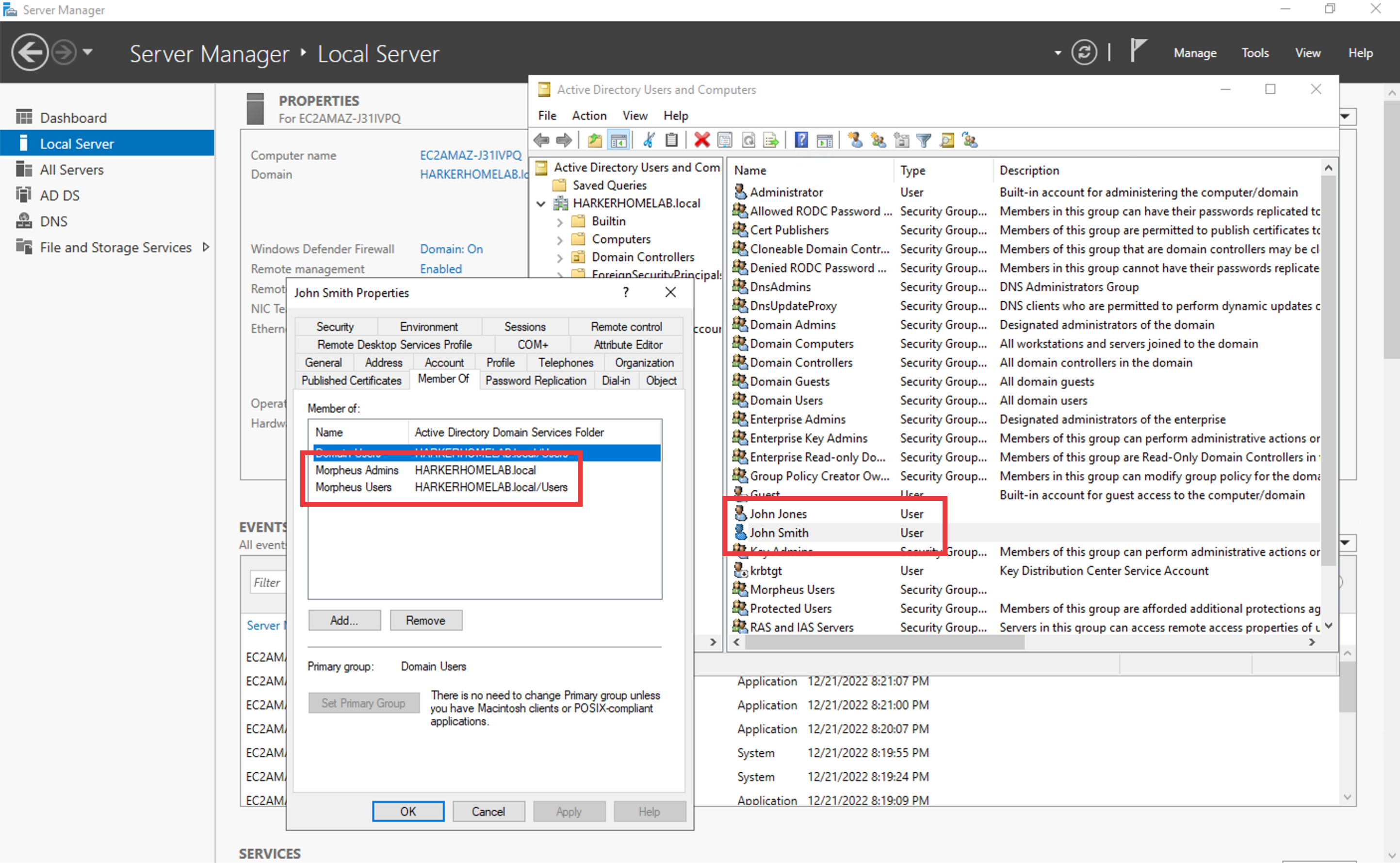
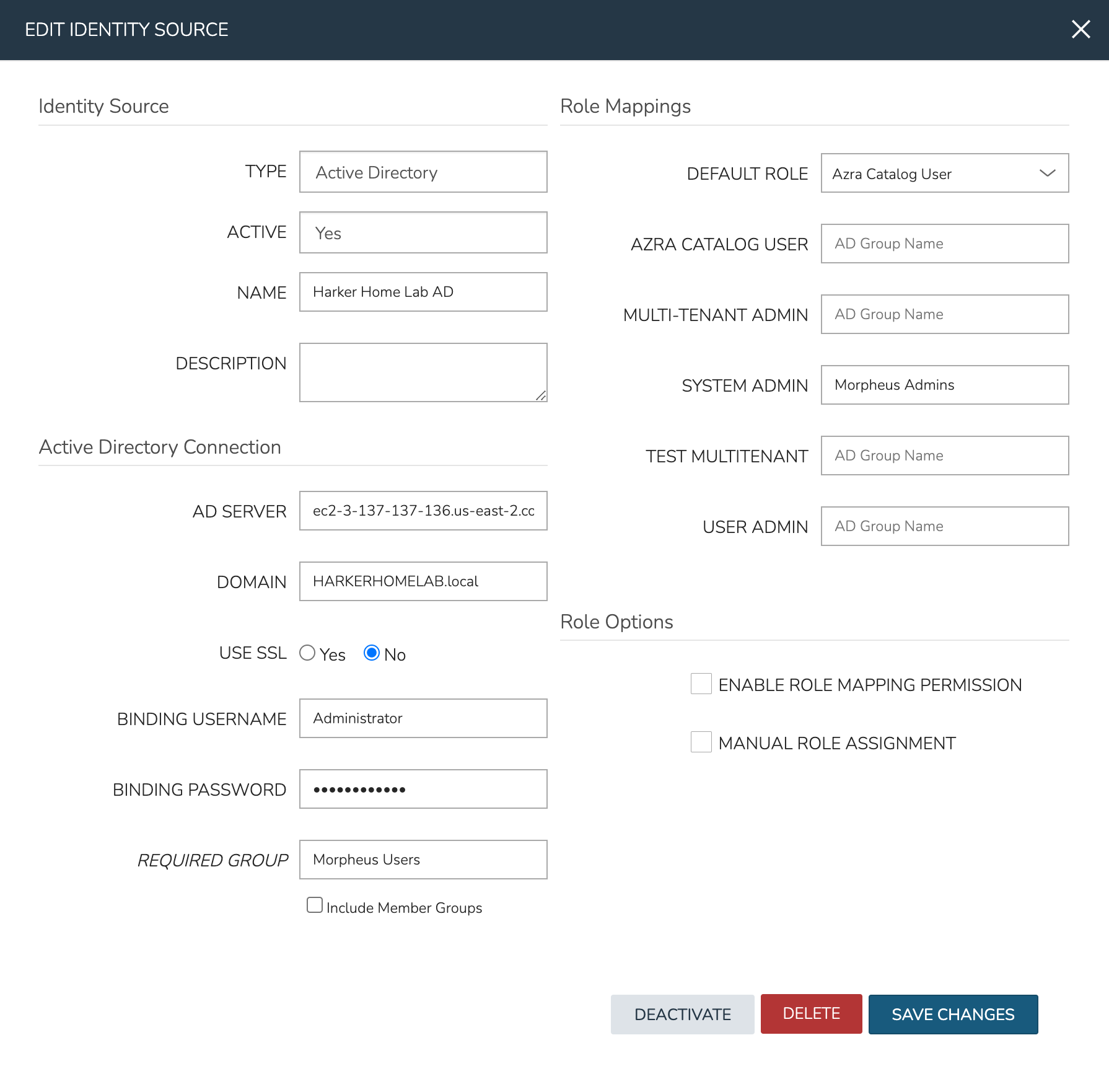
Knowing the AD scheme and the requirements for HPE Morpheus Software user roles, we can begin the process of creating the integration. Identity integrations are specific to each Tenant so begin by navigating to the Tenant detail page (Administration > Tenants > Selected Tenant) and clicking IDENTITY SOURCES. On setting the type to “Active Directory,” the form will update with the needed fields. Note the following basic fields:
AD SERVER: The IP address or hostname for the Active Directory Server
DOMAIN: The AD domain in which the relevant users and groups reside
BINDING USERNAME: A server user which has access to relevant objects on the AD server. In my example, I’ve used the in-built Administrator user which is the easiest option. Other users may be used depending on your organization’s IT security policies but the integration with HPE Morpheus Software will not work properly if the user does not have the needed access
BINDING PASSWORD: The password for the user in the prior field
With the basic configurations completed, the remaining configurations will affect HPE Morpheus Software user and role generation. A REQUIRED GROUP is optional and is a group the user must be in to have any HPE Morpheus Software access. Here we require that users be in the “Morpheus Users” group. A DEFAULT ROLE is required and will be assigned to all users regardless of any additional roles they may be assigned based on their AD group membership. Beyond that, all other HPE Morpheus Software roles will be listed here and an AD group name can be associated with as many as you required. In this example, we are giving users in the “Morpheus Admins” group the HPE Morpheus Software System Admin role. Though we did not use them, it’s worth pointing out that ENABLE ROLE MAPPING PERMISSION will give administrators in the Tenant the ability to update the AD role mappings (though they will not have access to the core integration fields such as AD SERVER, DOMAIN, or binding user details). MANUAL ROLE ASSIGNMENT allows users to manually update HPE Morpheus Software roles outside of the automatic mappings created by the AD integration.
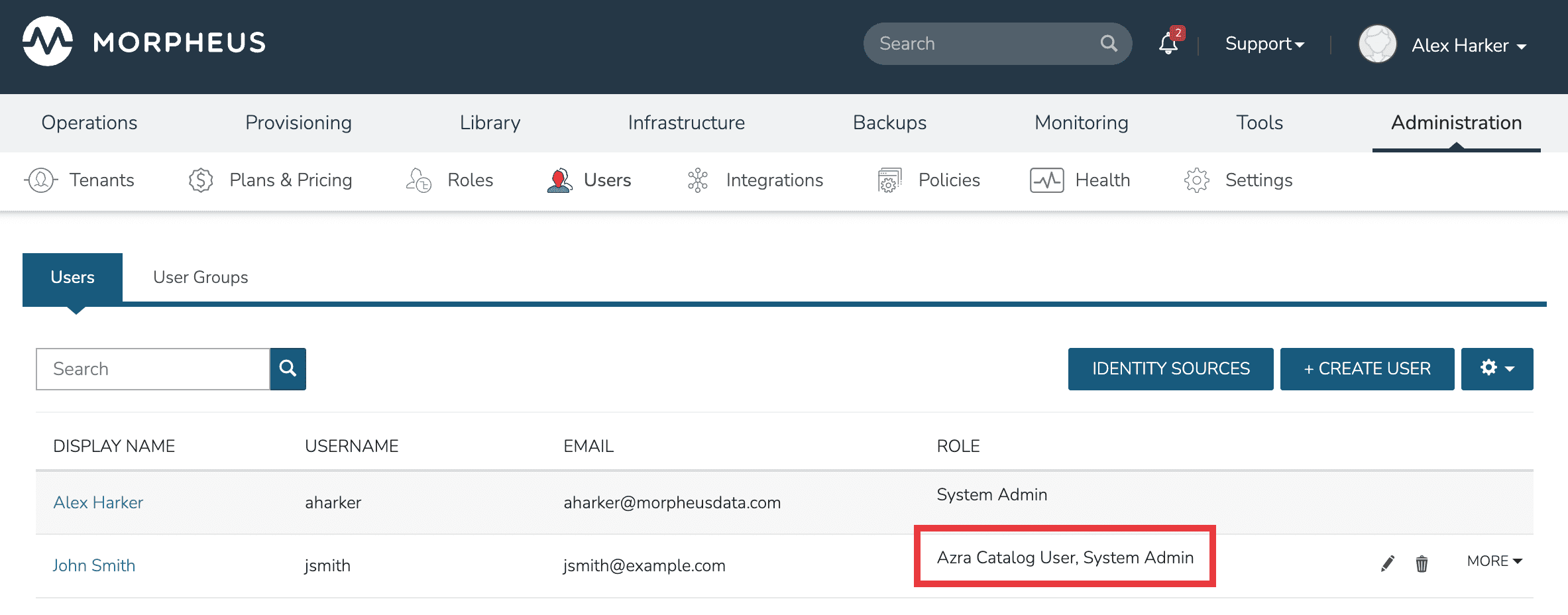
With the above integration steps completed, users can now log into HPE Morpheus Software and a user account with correct roles will automatically be created. In our example case, John Smith has logged in and we can see he is assigned the default role as well as the System Admin role based on his AD group associations. Going forward, HPE Morpheus Software will continue to sync any changes to these users. For example, HPE Morpheus Software roles may be updated based on changing AD groups or user access may be completely revoked by disabling the user in AD.
Restricting Access with Required Group
Important
If the REQUIRED GROUP field is left empty, any user who can authenticate against the Active Directory server will be allowed to log in. A local HPE Morpheus Software user account is automatically created for each user upon first login. To restrict access to only authorized users, you must configure the REQUIRED GROUP field.
The REQUIRED GROUP field is the primary mechanism for controlling which AD users are permitted to access HPE Morpheus Software. It works as follows:
Required Group set: Only users who are members of the specified AD group can log in. Users who authenticate successfully against AD but are not in the required group are denied access and no local user object is created.
Required Group empty: All users who can authenticate against the AD server are allowed to log in. This is the default behavior and is typically not appropriate for enterprise environments.
Include Member Groups: When checked, users in groups nested inside the required group are also granted access.
The Required Group acts as a gatekeeper. Role mappings and the Default Role are only applied after the Required Group check passes. The interaction between these fields is:
User authenticates credentials against AD
HPE Morpheus Software checks if the user is in the Required Group (if configured)
If the user is not in the Required Group, login is denied (no user is created)
If the user passes the Required Group check, HPE Morpheus Software creates or syncs the user account
The Default Role is applied to the user
Any additional role mappings are applied based on the user’s AD group memberships
Note
The Default Role is always applied to users who pass the Required Group check. It is additive—users receive the Default Role in addition to any roles assigned through role mappings. It is not a fallback that only applies when no other mapping matches.
Recommended Configuration for Enterprise Environments:
Always set a Required Group to prevent unauthorized directory users from accessing HPE Morpheus Software
Create a dedicated AD group (e.g., “Morpheus Users”) and add only authorized users
Set the Default Role to the most restrictive role appropriate for general users
Use role mappings to assign elevated roles (e.g., System Admin) to users in specific AD groups
Adding an Active Directory Integration
Navigate to Administration > Tenants
Select a Tenant
Select IDENTITY SOURCES
Select + ADD IDENTITY SOURCE
Set the TYPE to “Active Directory”
Populate the following:
- Name
A friendly name in HPE Morpheus Software for the AD integration
- AD Server
The Hostname or IP address of AD Server
- Domain
The AD domain in which the relevant user and group objects reside
- USE SSL
Indicates whether SSL should be used for communication with the AD server. HPE Morpheus Software will connect over port 389 for non-secure LDAP and port 636 for secure LDAP, ensure HPE Morpheus Software can connect to the AD server over the correct port
- Binding Username
A username for a service account which has access to relevant objects (users, groups, etc.). For ease, the “Administrator” user may be used
- Binding Password
The password for the above account
- Required Group
The AD group users must be in to have access. If left empty, all users who can authenticate against the AD server will be allowed to log in and a local user account will be created automatically. It is strongly recommended to set this field in enterprise environments to restrict access to only authorized users (see the “Restricting Access with Required Group” section above)
- Include Member Groups
When checked, users in groups that are nested inside the required group will also be granted access
- Default Role
The default role applied to all users who pass the Required Group check. This role is always assigned in addition to any roles granted through the role mappings below. Set this to the most restrictive role appropriate for general users
- ENABLE ROLE MAPPING PERMISSION
When selected, Tenant users with appropriate rights to view and edit Roles will have the ability to set role mapping for the Identity Source integration. This allows the Tenant user to edit only the role mappings without viewing or potentially editing the basic Identity Source configuration (AD server, domain, binding user details, etc)
- MANUAL ROLE ASSIGNMENT
When selected, administrators can manually edit Roles for users created through this identity source integration from the user detail page (Administration > Users > Selected user)
Note
For more on Identity Source role mapping permissions, see the associated guide in our KnowledgeBase.
Select SAVE CHANGES.
Now allowed AD users can login to HPE Morpheus Software via their Active Directory credentials and a User will be automatically generated to HPE Morpheus Software with matching metadata and mapped Role permissions.
Troubleshooting
If you’re unable to get the Active Directory integration to work, the following troubleshooting steps may be useful to ensure your appliance can talk to the Active Directory server.
Open firewall ports
Source: HPE Morpheus Software appliance
Destination: AD server’s FQDN or IP address
Non-SSL AD integration: TCP-389
SSL AD integration: TCP-636
Checking open LDAP connections from the HPE Morpheus Software appliance
Connect to a HPE Morpheus Software appliance box and run the following:
$ sudo lsof i- | grep :ldap
Check LDAP connectivity from the HPE Morpheus Software appliance
Connect to a HPE Morpheus Software appliance box and run the following. Be sure to replace the placeholder values in the command with the correct values for your environment:
$ ldapsearch -x -h xx.xx.xx.xx -D "binding-user@acme.com" -W -b "cn=users,dc=acme,dc=com"
Run tcpflow from the HPE Morpheus Software appliance for non-SSL enabled AD identity Integrations
Use tcpflow from the HPE Morpheus Software appliance and then start the identity source configuration once again. Keep in mind this will only work for AD servers which are not SSL enabled:
$ sudo tcpflow -i any -c -v port 389
Check the AD and domain controllers event logs
Check the event logs for LDAP queries from the HPE Morpheus Software appliance to ensure network connectivity.