Agent Installation
There are many methods to install the HPE Morpheus Software Agent on supported targets. All Agent installation methods are executing a script on the target that calls back to the HPE Morpheus Software appliance over port 443.
Important
All Agent installation methods require the Target (VM or Host) to resolve and reach the appliance URL over port 443. In addition to the main Appliance URL (in Administration > Settings), additional Appliance URLs can be set per cloud in the Advanced Options section of the Create/Edit Cloud modal. When this field is populated, it will override the main Appliance URL for anything provisioned into that Cloud.
Important
Endpoint detection and response (EDR), antivirus, application control, or host firewall policy can block the installation script, package installation, Agent process startup, outbound reachability, websocket communication, or a later Agent upgrade. Before installation, ask the security team to permit the HPE-published package or appliance-provided script and the specific Agent paths, processes, and appliance destination required by policy. Do not create broad filesystem, process, or network exclusions. If a policy block is suspected, preserve the security-product event, Agent/install output, and appliance log entry and follow the Endpoint Security Interference guidance included below.
Basic Installation Steps
An Agent installation method is used to get the install script onto the target VM or Host
The Agent installation script is executed on the target VM or Host, installing the Agent and all dependencies
The Agent is started and makes a websocket connection to the configured Appliance URL over port 443 using the target VM or Host API key
It is important to note these are three separate steps with varying requirements. The first requires a path to get the script on the target. The second requires successful execution of the Agent installation script. The third requires a successful websocket connection. Requirements for the successful execution of each step are covered in the sections below.
Tip
The HPE Morpheus Software UI current log, located at /var/log/morpheus/morpheus-ui/current, is very helpful when troubleshooting Agent installations.
Agent Install Modes
Agent Installation Method is determined by:
The AGENT INSTALL MODE setting on target Cloud: - SSH / WinRM / Guest Execution - Cloud Init / Unattend (when available)
Platform / OS type on Virtual Image or target (VM or Host)
Virtual Image configuration
RPC Mode setting (VMware Clouds only)
Agent Installation Methods
The Morpheus Agent can be installed with a variety of automated methods. It is important to note these methods simply get the Agent install script to the target. Successful execution of the Agent install script is not directly related to the Agent install method.
- SSH
HPE Morpheus Software makes an SSH connection to the VM or Host, CURLs, and executes the Agent install script:
curl -k -s "https://${applianceUrl}/api/server-script/agentInstall?apiKey=${apiKey}" | bash- WinRM
HPE Morpheus Software makes a WinRM connection to the VM or Host and executes the Agent install script
- VMware Tools
HPE Morpheus Software executes agentInstall.sh or agentInstall.ps1 via VMware Tools Guest Execution
- Cloud-Init
HPE Morpheus Software executes agentInstall.sh via cloud-init runcmd
- Cloudbase-Init
HPE Morpheus Software adds WindowsAgentCloudInitInstallScript to CloudbaseInitUserData
- Windows Unattend
HPE Morpheus Software adds getWindowsAgentDownloadScript to unattend.xml (RunSynchronousCommand)
- Manual
User executes agentInstall.sh or agentInstall.ps1 manually on the VM or Host. These scripts can be obtained on the VM or Host detail page via Actions > Download Agent Script
SSH
Process
HPE Morpheus Software makes an SSH connection to the VM or Host, CURLs, and executes the Agent install script:
curl -k -s "https://${applianceUrl}/api/server-script/agentInstall?apiKey=${apiKey}" | bash
Requirements
Port 22 is open for Linux images, and SSH is enabled
Credentials have been entered on the image if using a custom or synced image. Credentials can be entered on images in the section
WinRM
Process
HPE Morpheus Software makes a WinRM connection to the VM or Host and executes the Agent install script
Requirements
Port 5985 must be open and WinRM enabled for Windows images
Credentials have been entered on the image if using a custom or synced image. Credentials can be entered on images in the section
Administrator User (SID 500) is required for Windows Agent install
VMware Tools
Process
HPE Morpheus Software executes agentInstall.sh or agentInstall.ps1 via VMware Tools Guest Execution
Requirements
VMware Tools is installed on the template(s)
Credentials have been entered on the Image if using an uploaded or synced image when Cloud-init, Guest Customizations, or Sysprep for Windows are not used. Credentials can be entered on Images in the section
Administrator User (SID 500) is required for Windows Agent install.
Cloud-Init
Process
HPE Morpheus Software executes agentInstall.sh via Cloud-Init runcmd
Requirements
Cloud-Init is installed on Virtual Image
“IS CLOUD INIT ENABLED?” is checked (true) on the HPE Morpheus Software Virtual Image record
Cloud-Init User is configured in the section
Cloudbase-init
Process
HPE Morpheus Software adds WindowsAgentCloudInitInstallScript to CloudbaseInitUserData
Requirements
Cloudbase-Init is installed on the Virtual Image
“IS CLOUD INIT ENABLED?” is checked (true) on the HPE Morpheus Software Virtual Image record
Windows Administrator password defined in the section
Windows Unattend
Process
HPE Morpheus Software adds getWindowsAgentDownloadScript to unattend.xml (RunSynchronousCommand)
Requirements
- VMware
Windows Administrator password defined in the section OR Administrator User (SID 500) and valid Windows password are defined on the HPE Morpheus Software Virtual Image record
“FORCE GUEST CUSTOMIZATION?” is checked (true) on the HPE Morpheus Software Virtual Image record when using DHCP
“IS CLOUD INIT ENABLED?” is unchecked (false) on the HPE Morpheus Software Virtual Image record
- Nutainx/SCVMM/Openstack
Windows Administrator password defined in the section OR Administrator User (SID 500) and valid Windows password are defined on the HPE Morpheus Software Virtual Image record
“ENABLED SYSPREP?” is checked (true) on the HPE Morpheus Software Virtual Image record
“IS CLOUD INIT ENABLED?” is unchecked (false) on the HPE Morpheus Software Virtual Image record
Manual
Process
From the VM or Host record page (
/infrastructure/servers/${id}) run ACTIONS >Download Agent ScriptThis is will generate an Agent install script based off the target OS and platform, Appliance URL, and API key
Manually execute the downloaded script on the Target VM or Host
Agent Install Requirements
When provisioning an Instance, there are network and configuration requirements to consider in order to successfully install the HPE Morpheus Software Agent. Typically, when a VM Instance is still in the provisioning phase long after the VM is up, the Instance is unable to reach HPE Morpheus Software. Depending on the Agent install mode, it could also mean HPE Morpheus Software is unable to reach the Instance.
The most common reason an Agent install fails is the provisioned Instance cannot reach the HPE Morpheus Software Appliance via the Appliance URL set in Administration > Settings over port 443. When an Instance is provisioned from HPE Morpheus Software, it must be able to reach the HPE Morpheus Software appliance via the Appliance URL or the Agent will not be installed.
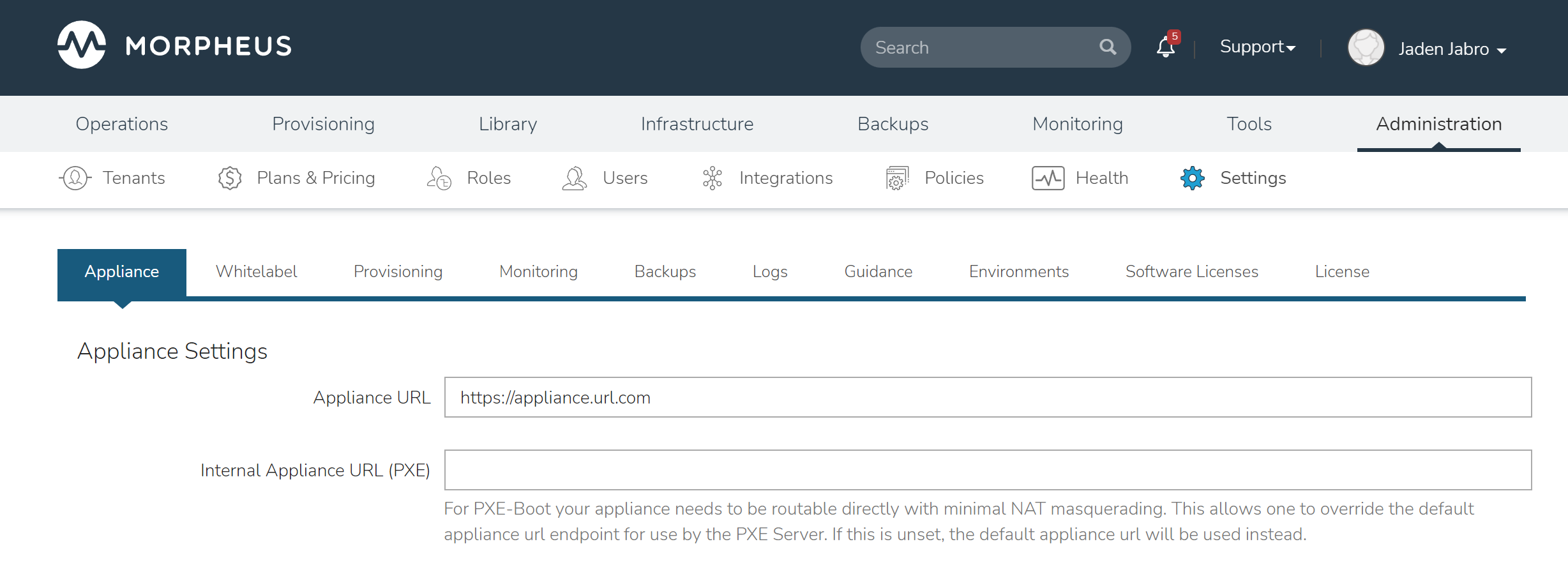
In addition to the main Appliance URL in Administration > Settings, additional Appliance URLs can be set per Cloud in the Advanced Options section of the Cloud configuration modal when creating or editing a Cloud. When this field is populated, it will override the main Appliance URL for anything provisioned into that Cloud.
Tip
The HPE Morpheus Software UI current log, located at /var/log/morpheus/morpheus-ui/current, is very helpful when troubleshooting Agent installations.
Agent Install Methods
Morpheus Agent installation supports multiple install methods.
SSH/WinRM
VM Tools
Cloud-Init & Cloudbase-Init
Windows Unattended
Manual
For All Agent Install Methods
When an Instance is provisioned and the Agent does not install, verify the following for any Agent install mode:
The HPE Morpheus Software Appliance URL (Administration > Settings) is both reachable and resolvable from the provisioned node
Note
Be sure to use https:// even when using an IP address for the appliance.
Inbound connectivity access to the HPE Morpheus Software appliance from provisioned VMs and container hosts on port 443 (needed for Agent communication)
Private (non-HPE Morpheus Software provided) VM images and templates must have their credentials stored. These can be entered or edited in the section by clicking the Actions dropdown on an image detail page and selecting Edit.
Note
Administrator user is required for Windows Agent install.
The Instance does not have an IP address assigned. For scenarios without a DHCP server, static IP information must be entered by selecting the Network Type: Static in the Advanced Options section during provisioning. IP Pools can also be created in the Infrastructure > Networks > IP Pools section and added to Cloud network sections for IPAM
DNS is not configured and the node cannot resolve the appliance. If DNS cannot be configured, the IP address of the HPE Morpheus Software appliance can be used as the main or Cloud appliance
Endpoint Security Interference
EDR, antivirus, application control, and host firewall products can interrupt different stages of Agent setup. A blocked download or script affects delivery; a denied package manager or file write affects installation; a quarantined morphd process affects startup; and a denied outbound HTTPS/WSS session affects registration and ongoing communication. An Agent upgrade can encounter the same controls again even when the previous version was permitted.
Record the failed stage, timestamp, installation output, and the relevant entry from
/var/log/morpheus/morpheus-ui/current. On the target, collect Agent logs from/var/log/morpheus-nodeand the security product’s prevention or quarantine event.Confirm DNS resolution and TCP 443 connectivity to the configured Appliance URL. If these checks succeed but the Agent cannot connect, have the security team inspect TLS/websocket filtering and process-specific network policy.
Correlate the event with
morphd, themorpheus-node-runsvdirservice,/opt/morpheus-node,/etc/morpheus/morpheus-node.yaml, and/var/log/morpheus-node. Permit only the exact package, process, path, action, or destination shown to be blocked, using the security vendor’s approved allowlisting mechanism.Retry the failed installation or upgrade and verify that the Agent starts, reconnects, and reports in HPE Morpheus Software. Preserve the evidence if the targeted rule does not resolve the failure.
Do not prescribe a permanent exclusion for the entire Agent directory, all scripts, all child processes, or all traffic. If temporary security-control disablement is the only available diagnostic, obtain security-policy approval, isolate the test to the affected host and shortest practical interval, re-enable protection immediately, and verify both Agent health and security-control health. Escalate with the collected evidence rather than leaving protection disabled.
SSH
Port 22 is open for Linux images, and SSH is enabled
Credentials set on the image if using a custom or synced image. Credentials can be entered on images in the section
WinRM
Port 5985 must be open and WinRM enabled for Windows images
Credentials have been entered on the image if using a custom or synced image. Credentials can be entered on images in the section
Note
Administrator user is required for Windows Agent install.
VMware Tools (vmtools)
VMware Tools is installed on the template(s)
Credentials have been entered on the image if using custom or synced image. Credentials can be entered on images in the section
Sudo privileges required for Linux
Administrator User required for Windows (SID 500)
Cloud-Init
Cloud-Init settings configured in section
Cloud-Init installed on Virtual Image
Cloud-Initenabled on Virtual Image config
Cloudbase-Init
Windows Administrator Password defined in section
Cloudbase-Init installed on Virtual Image
Cloud-Initenabled on Virtual Image configCloudbase-Init is only required for OpenStack Cloud types
Note
Unattend Agent Installation and customizations are recommended over Cloudbase-Init
Windows Unattended
Windows Administrator Password defined in section
VMware:
Force Guest Customizationsset to forced on Virtual Image config when using DHCP (Static Assignment will already force Guest Customizations)Nutanix & SCVMM: Virtual Image is sysprepped and shutdown,
Sysprep Enabledflagged on Virtual Image config
Manual
Agent Install scripts can be downloaded from HPE Morpheus Software by selecting Actions > Download Agent Script from an Server detail page, then run manually on the target host when required for a given managed resource. Please note the script will be unique per managed resource and should not be saved to run as needed on any arbitrary resources in the future.
When installing on Windows, continue with the steps below to complete manual installation:
Open powershell as an administrator
Run the
unblock-file cmdletagainst the download agent installation script:Unblock-File -Path C:\Users\User01\Documents\Downloads\agentInstall.ps1 Get-ExecutionPolicy Set-ExecutionPolicy -ExecutionPolicy Unrestricted -Scope CurrentUserAfter running the powershell script, ensure the script downloaded the msi and the Agent service started correctly:
Set-ExecutionPolicy -ExecutionPolicy RemoteSigned -Scope CurrentUser
Following setup, verify that the Agent is reporting back to the HPE Morpheus Software appliance.
Restarting the HPE Morpheus Software Agent
In some situations, it may necessary to restart the HPE Morpheus Software Agent on the host to re-sync communication from the Agent to the HPE Morpheus Software appliance.
Linux
On the target host, run sudo morpheus-node-ctl restart morphd and the HPE Morpheus Software agent will restart. morpheus-node-ctl status will also show the agent status.
Windows
The HPE Morpheus Software Windows Agent service can be restarted in Administrative Tools > Services.
Tip
The HPE Morpheus Software Remote Console is not dependent on Agent communication and can be used to install or restart the HPE Morpheus Software agent on an Instance.
Uninstall HPE Morpheus Software Agent
Linux Agents
You can use the following to uninstall the linux agent (contains commands for both rpm and deb agents)
sudo rm /etc/apt/sources.list.d/morpheus.list \
sudo morpheus-node-ctl kill \
sudo apt-get -y purge morpheus-node \
sudo apt-get -y purge morpheus-vm-node \
sudo yum -y remove morpheus-node \
sudo yum -y remove morpheus-vm-node \
sudo yum clean all \
sudo systemctl stop morpheus-node-runsvdir \
sudo rm -f /etc/systemd/system/morpheus-node-runsvdir.service \
sudo systemctl daemon-reload \
sudo rm -rf /var/run/morpheus-node \
sudo rm -rf /opt/morpheus-node \
sudo rm -rf /etc/morpheus \
sudo rm -rf /var/log/morpheus-node \
sudo pkill runsv \
sudo pkill runsvdir \
sudo pkill morphd \
sudo usermod -l morpheus-old morpheus-node \
Windows Agents
$app = Get-WmiObject -Class Win32_Product -Filter "Name = 'Morpheus Windows Agent'"
$app.Uninstall()
CentOS/RHEL 7 Images
For custom CentOS 7 images we highly recommend setting up Cloud-Init and fixing the network device names. More information for custom CentOS images can be found in the CentOS 7 image guide.