Networks
Infrastructure > Network > Networks
Overview
The Networks section is for configuring networks across all clouds in HPE Morpheus Software. Existing networks from Clouds added in HPE Morpheus Software will auto-populate in the Networks section.
Networks can be configured for DHCP or Static IP assignment, assigned IP pools, and configured for visibility and account assignment for multi-tenancy usage. Inactive Networks are unavailable for provisioning use. In addition, HPE Morpheus Software allows administrators to restrict management of HPE Morpheus Software-created Networks through Role permissions.
Filtering Networks by all Labels through the API
The Networks API allLabels filter matches Networks that have every supplied Label. Supply the query key once for each Label; do not combine multiple Labels into one comma- or space-separated value.
GET /api/networks?allLabels=ENV.NIT&allLabels=SERVICE.LNX_AP_WLS
URL-encode Label values when they contain reserved characters. Repeated parameters are collected as separate values and the label service joins once per value, so the result contains only Networks matching all values. By contrast, labels/label uses match-any behavior.
Understanding Networks (VMware to HPE Morpheus Software)
For administrators coming from VMware environments, the following analogy table maps familiar VMware networking concepts to their HPE Morpheus Software equivalents:
VMware Concept |
HPE Morpheus Software Equivalent |
Notes |
|---|---|---|
vSwitch / vDS (Distributed Switch) |
Virtual Switch (HVM clusters) |
Cluster-level abstraction that manages uplinks, bonds, and traffic types. See Virtual Switches. |
Port Group |
Network |
A named network with VLAN, CIDR, gateway, and DNS settings. VMs are attached to Networks during provisioning. |
VLAN ID (on port group) |
VLAN ID (on Network or Virtual Switch segment) |
VLAN tagging is set on the Network record or on the Virtual Switch traffic segment. |
VM Network / Management Network |
VM Network traffic type (Virtual Switch) |
The default Virtual Switch ( |
VMkernel adapter (vmk) for storage |
Data (NFS) or Data (iSCSI) traffic type |
Storage traffic is carried on dedicated Virtual Switch segments with host-level IP addresses assigned. |
VMkernel adapter for vMotion |
Live Migration traffic type |
Dedicated Virtual Switch segment for live migration traffic between hosts. |
IP Pool (IPAM) |
IP Pool (HPE Morpheus Software or IPAM integration) |
HPE Morpheus Software has built-in IP pool management or can integrate with external IPAM (Infoblox, Bluecat, etc.). |
Domain / DNS |
Network Domain |
Configured under Infrastructure > Network > Domains. Used for DNS suffix and Active Directory domain join. |
Creating a New Network
To create a new network and make it available for VM provisioning:
Navigate to
Infrastructure > Network > NetworksClick + Add
Select the target Cloud where this network will be used
Configure the network settings:
Field
Description
Name
Display name for the network (e.g.,
Production-VLAN100)CIDR
Network CIDR notation (e.g.,
10.10.100.0/24)Gateway
Default gateway IP for VMs on this network
DNS Primary / Secondary
DNS servers for VMs on this network
VLAN ID
VLAN tag (if applicable). Must match the VLAN configured on the physical switch / Virtual Switch.
DHCP Server
Enable if a DHCP server is present on this network. When enabled, VMs receive IPs from DHCP rather than HPE Morpheus Software IP management.
Network Pool
Select an IP Pool for static IP assignment. When a pool is assigned, IPs are automatically allocated from the pool during provisioning.
Domain
Associate a Network Domain for DNS suffix and domain join
Active
Must be enabled for the network to appear as a provisioning option
Configure permissions (Group Access, Tenant Permissions) as needed
Click Save Changes
Tip
Replicating a VMware network: If you have a VMware port group on VLAN 100 with subnet 10.10.100.0/24 and gateway 10.10.100.1, create a Network in HPE Morpheus Software with those same settings. On an HVM cluster, ensure a Virtual Switch exists with a VM Network segment on VLAN 100 to carry this traffic on the physical uplinks.
Synced Networks vs Manually Created Networks
Synced networks are automatically discovered from integrated Clouds (e.g., VMware port groups, AWS VPCs/subnets). These appear in the Networks list after a Cloud sync and can be edited to add HPE Morpheus Software-specific settings (IP pools, domains, permissions).
Manually created networks are defined directly in HPE Morpheus Software and are used when the Cloud does not auto-discover networks (e.g., HVM clusters where networks are defined by Virtual Switch segments) or when you need to create an overlay network definition.
For the legacy/layout 1.3 HVM Overlay Network fields, VXLAN behavior, prerequisites, and deletion impact, use HVM Networks. Do not apply that plugin workflow to layout 2.0 Virtual Switches.
Configuring Networks
DHCP
To configure a network for DHCP:
Navigate to Infrastructure > Network > Networks
Search for the target network
Edit the Network by either:
Select Actions > Edit
Select the Network, then select Edit
In the Network Config modal, set the DHCP flag as Active (default)
Save Changes
Important
The DHCP flag tells HPE Morpheus Software this network has a DHCP server assigning IP Addresses to hosts. HPE Morpheus Software does not act as the DHCP server, and provisioning to a network that has the DHCP server flag active in HPE Morpheus Software , but no DHCP server actually on the network will in most cases cause the instance to not receive an IP address.
Note
When selecting a network with DHCP enabled during provisioning, “DHCP” will populate to the right of the selected network:
Static and IP Pools
To configure a network for Static IP Assignment:
Navigate to Infrastructure > Network > Networks
Search for the target network
Edit the Network by either:
Select Actions > Edit
Select the Network, then select Edit
In the Network Config modal, add the following:
Gateway
DNS Primary
DNS Secondary
CIDR ex 10.10.10.0/22
VLAN ID (if necessary)
Network Pool * Leave as “choose a pool” for entering a static IP while provisioning * Select a Pool to use a pre-configured HPE Morpheus Software or IPAM Integration IP Pool
The Permissions settings are used for Multi-Tenant resource configuration
Leave settings as default if used in a single-tenant environment (only one Tenant in your HPE Morpheus Software appliance)
To share this network across all accounts in a multi-tenant environment, select the Master Tenant and set the Visibility to Public
To assign this network to be used by only one account in a multi-tenant environment, select the account and set visibility to Private
Active
Leave as enabled to use this network
Disable the active flag to remove this network from available network options
Save Changes
Note
When selecting a network with DHCP disabled and no IP Pool assigned during provisioning, an IP entry field will populate to the right of the selected network(s):
Note
When selecting a network with an IP Pool assigned during provisioning, the name of the IP pool will populate to the right of the selected network(s). IP Pools override DHCP.
Advanced Options (Search Domains)
Search domains are appended to DNS searches when a non fully qualified domain name (short name) is queried. Search domains can be entered as comma separated values, which will be added to DNS configurations, such as /etc/resolv.conf These domains are injected via cloud-init or other method chosen for the virtual image.
Group and Tenant Access
Networks can be configured to provide specific Group and Tenant access, if desired. Group Access controls which Groups at provision time will have access to the Network resource. Only workloads being provisioned to the selected Groups would have visibility into the Network. Workloads provisioned to other Groups would not see the Network as an available selection. Tenant Permissions control which Tenants may see the Network. Public visibility allows access to the Network for users in all Tenants (subject to additional RBAC controls) while Private visibility allows access only for selected Tenants. Select all that may apply.
Guest Console SSH Tunnel
In some scenarios, instances that are segregated from the HPE Morpheus Software appliance by port restrictions, or other mechanisms, can cause difficulties to access the guest console via the HPE Morpheus Software web UI. Guest Console SSH Tunnel settings allow the administrator to configure a jump host’s settings that is dual-homed, accessible by HPE Morpheus Software but also resides on the segregated network. When the guest console is configured with the SSH protocol, the traffic will be routed to the jump host, which will then relay to the target instance.
- GUEST CONSOLE JUMP HOST
DNS hostname or IP of the jump host to relay the traffic
- GUEST CONSOLE JUMP PORT
Port override, if different than 22 for SSH
- GUEST CONSOLE JUMP USERNAME
Username used to authenticate to the jump host
- GUEST CONSOLE JUMP PASSWORD
Password that is used with the username to autenticate to the jump host
- GUEST CONSOLE KEYPAIR
Keypair saved in HPE Morpheus Software to be used in lieu of, or in addition to, the password to the jump host, which is associated with the configured username Keypairs can be imported at:
Subnets
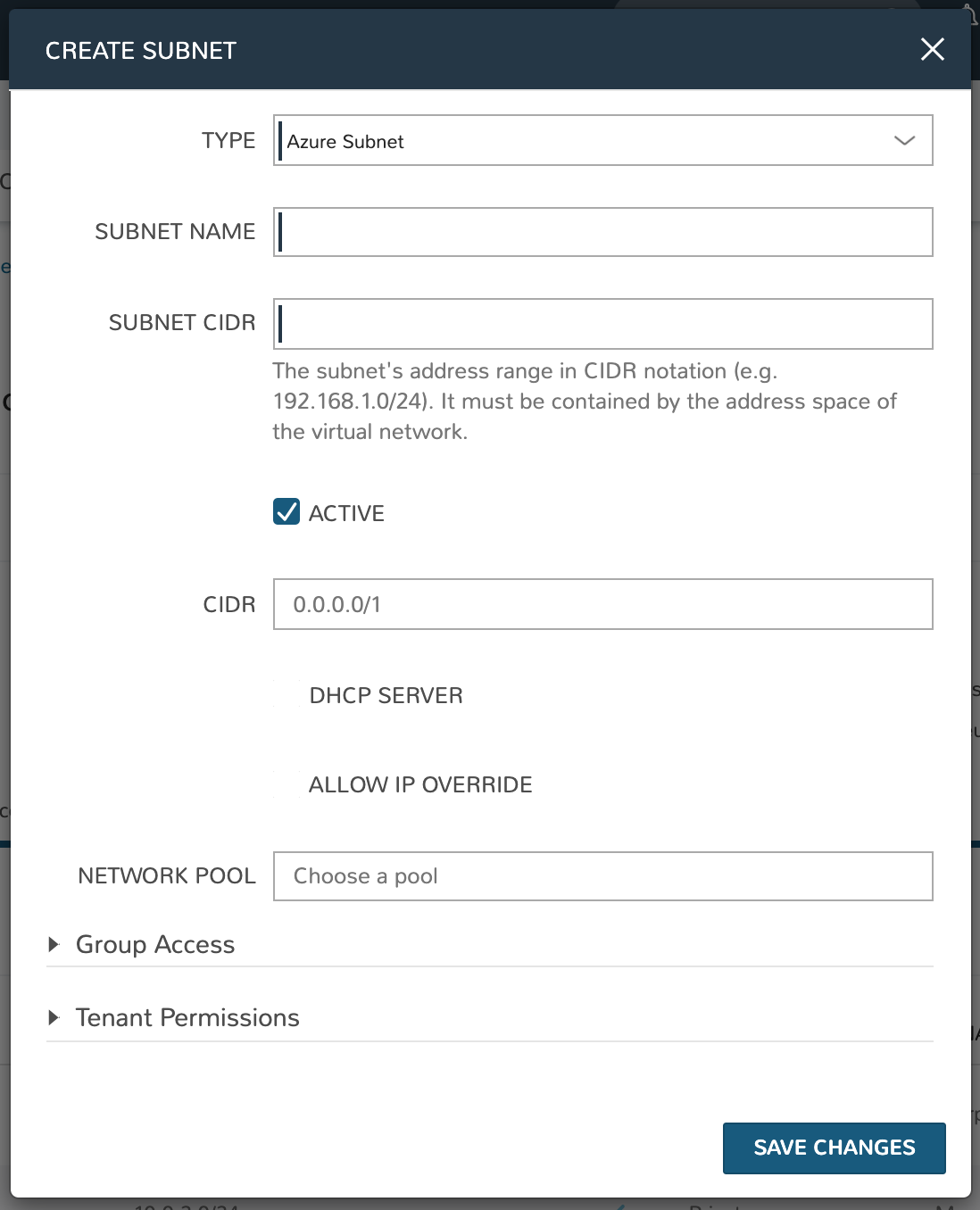
Subnet details can be viewed from the SUBNETS tab on the detail page of a specific network. From the SUBNETS tab, Morpheus allows the user to search and edit existing subnets.
In an Azure VNet, you can also create new subnets with the +ADD button.