NSX
Overview
VMware NSX offers network virtualization allowing for creation and management of software-based virtual networks in an efficient and programmatic way. HPE Morpheus Software offers a full-featured integration with NSX, including Project scoping for NSX 4+ integrations. HPE Morpheus Software will ingest and expose its networking abstractions in the following sections of the HPE Morpheus Software NSX integration:
SUMMARY
TRANSPORT ZONES
DHCP
SEGMENTS
FIREWALL
TIER-1 GATEWAYS
TIER-0 GATEWAYS
EDGE CLUSTERS
GROUPS
This guide goes through the process of integrating an existing NSX installation with HPE Morpheus Software and working with the associated objects synced in with the integration. For more on installing NSX and an overview of its concepts, please review the NSX overview documentation provided by VMware.
NSX Tagging
An NSX integration can apply Instance and VM tags to VMs in NSX, if desired. To apply this, mark the box for “APPLY VM TAGS” when adding or editing an NSX integration.
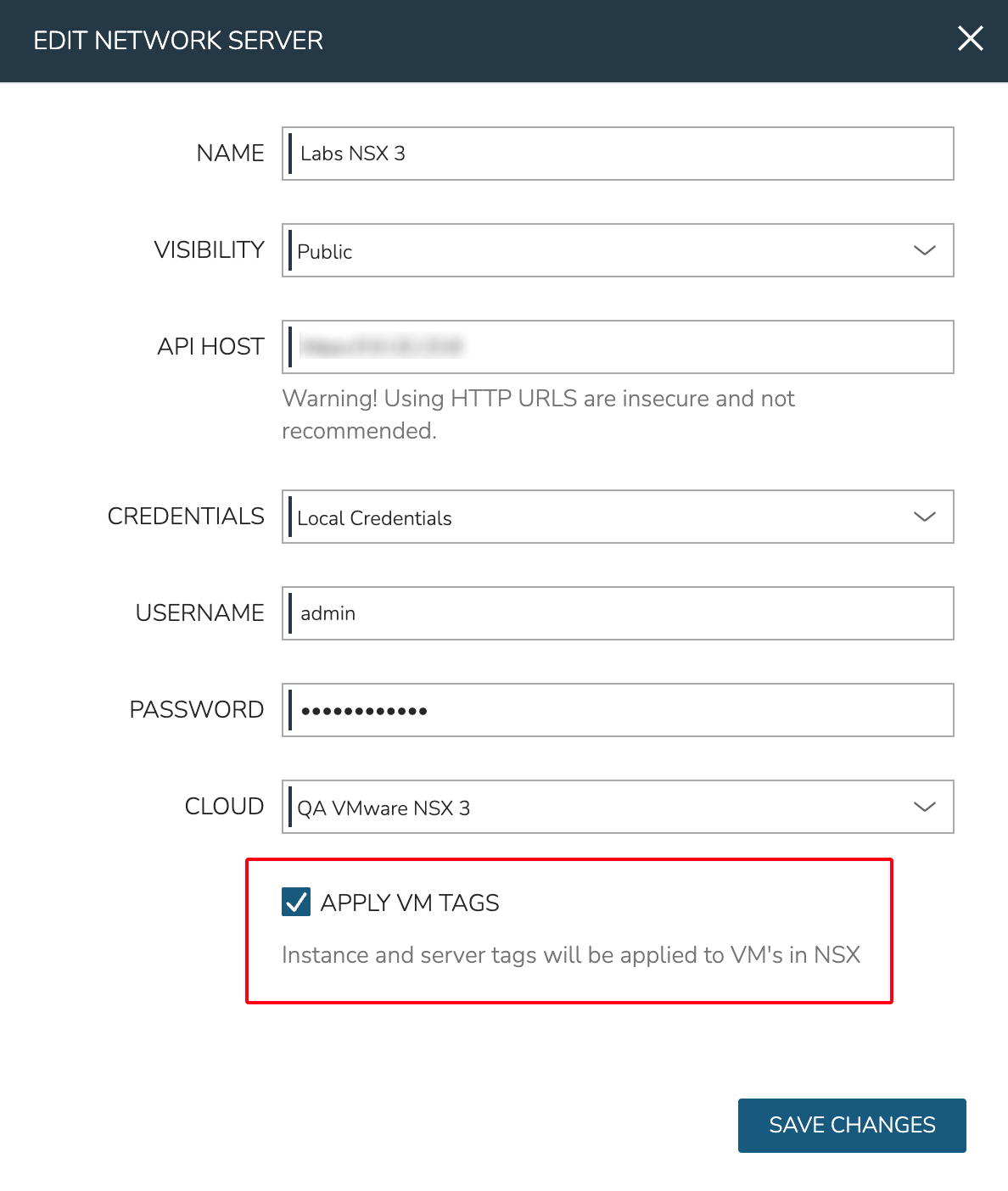
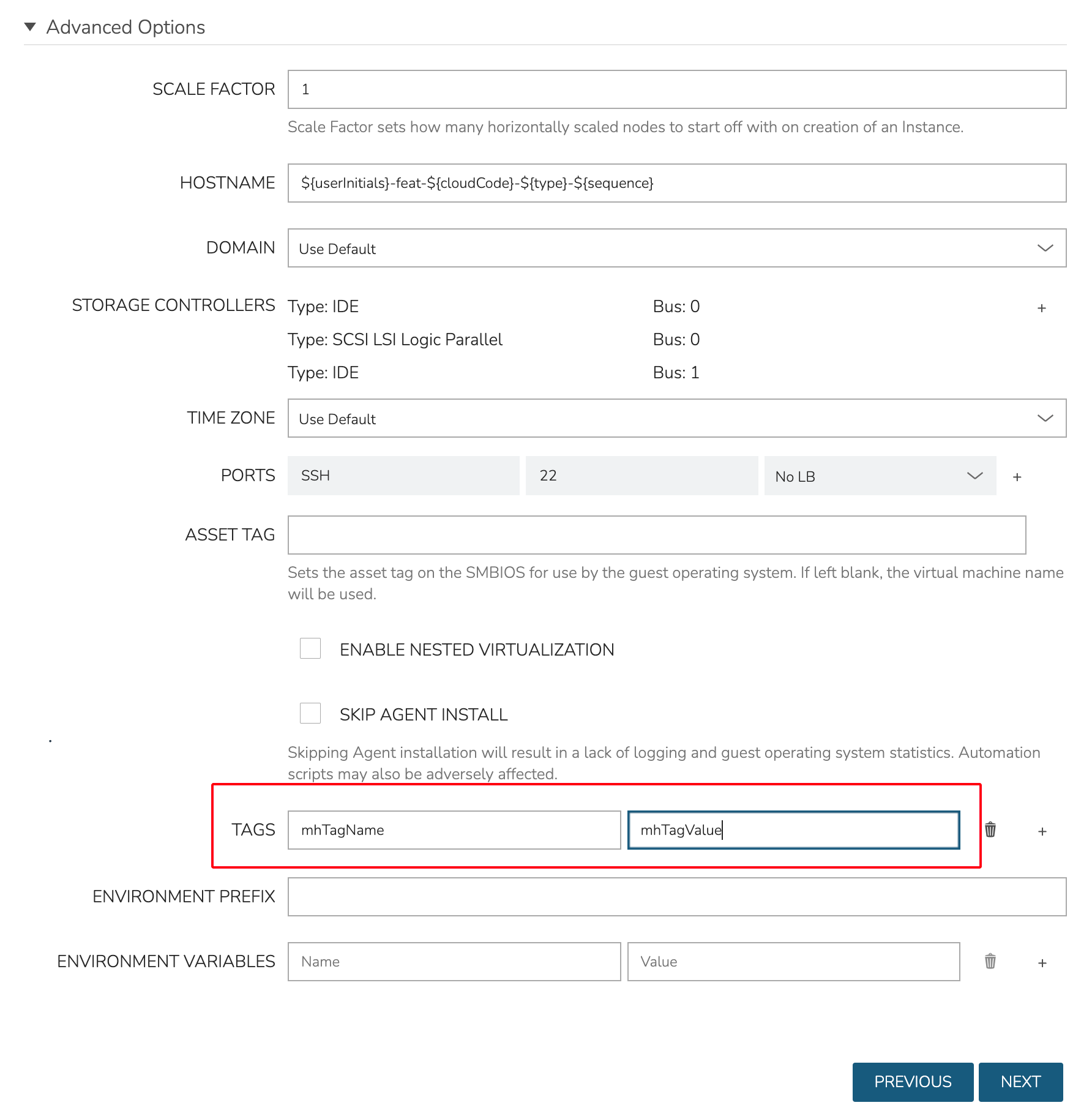
Once this configuration is set on the integration, any tags that are applied to applicable Instances through the provisioning wizard at provision time will be applied to those VMs in NSX. In the example below, I’ve set one tag on the new Instance in the provisioning wizard:
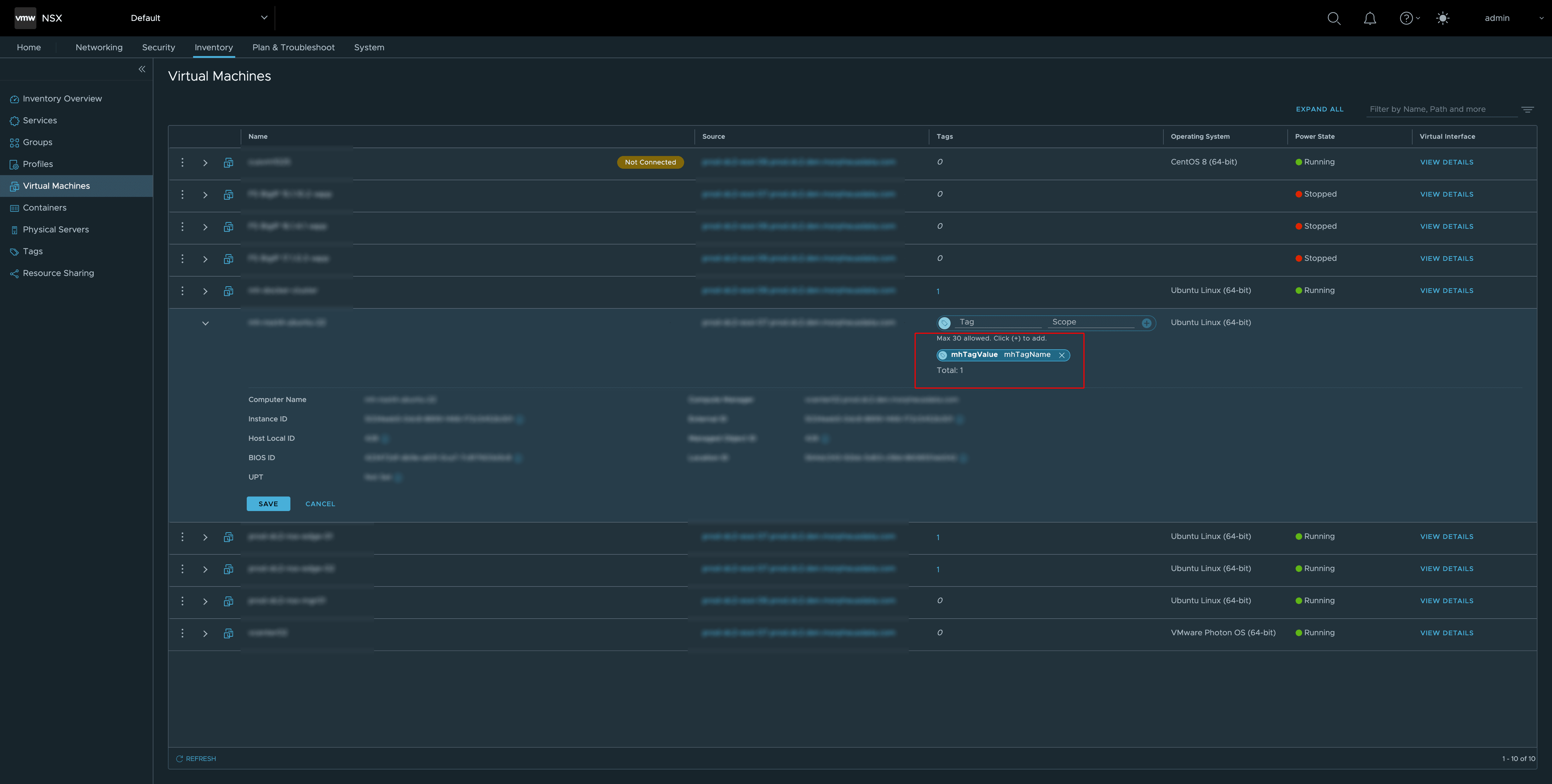
Once provisioning is complete, the tags are confirmed to be visible in the NSX console as well:
NSX Projects
Projects in NSX are analogous to tenants in other products and are a part of NSX version 4+. Projects allow for the isolation of networking abstractions into individual tenants within a single NSX appliance. If your organization is already utilizing NSX Projects, you are probably very familiar with their concept and execution but others can find high-level details about them here.
HPE Morpheus Software supports a full-featured integration with NSX, including the ability to scope the HPE Morpheus Software integration to a specific Project the service user can access. Using Project-scoped integrations allows multiple NSX integrations to be made to the same NSX appliance and ensures HPE Morpheus Software users are siloed to only the NSX Projects they can access.
Add NSX Integration to HPE Morpheus Software
Navigate to
Infrastructure > Network > IntegrationsSelect Select + ADD > VMWare NSX
Enter the following:
NAME: Name for the NSX Integration in HPE Morpheus Software
VISIBILITY: Public (available to all HPE Morpheus Software Tenants) or Private (available only to the current Tenant). This option is shown only in the HPE Morpheus Software Master Tenant
API HOST: URL of the NSX Manager (ex. https://x.x.x.x/api)
CREDENTIALS: A pre-stored credential set can be used to create this integration. If “Local Credentials” is selected, USERNAME and PASSWORD fields are presented and must be filled
USERNAME: NSX service account username. Prior to NSX version 4, this is likely an admin account with access to all networking constructs. In NSX version 4 and higher, this could be an admin for access to default space constructs or it could be a Project-specific user depending on the access needs of the integration being created
PASSWORD: The password for the NSX service account entered above
PROJECT: As soon as an API HOST and credentials are provided, HPE Morpheus Software will attempt to authenticate with the NSX appliance. When authentication is successful and a NSX 4+ appliance is detected, a PROJECT field will appear and the dropdown will be pre-populated with Projects accessible to the service user account
VMWARE CLOUD: Select the existing VMware cloud associated with this NSX integration
Select ADD NETWORK INTEGRATION
Once the NSX Integration is added HPE Morpheus Software will sync in existing Transport Zones, DHCP servers and relays, Segments, firewall groups and rules, Gateways, Edge Clusters, and Groups. We can manage these synced items from within HPE Morpheus Software UI, including the ability to create, edit, and delete them.
Note
The available tabs on the integration detail page will be dependent on the Project selected when the integration was created. Just like in NSX, the default view (and thus integrations scoped to the default Project) will have access to all constructs whereas individual Projects will not. Integrations scoped to individual Projects can view the DHCP, Segments, Firewall, Tier-1 Gateways, and Groups tabs but not the other tabs described here. These limitations are identical to those in the NSX console UI. More information on NSX Projects is available here.
Summary View
The SUMMARY tab contains the default view when accessing an NSX integration. From the summary view we can see the status of the NSX server, and details about interfaces and group status.
Transport Zones
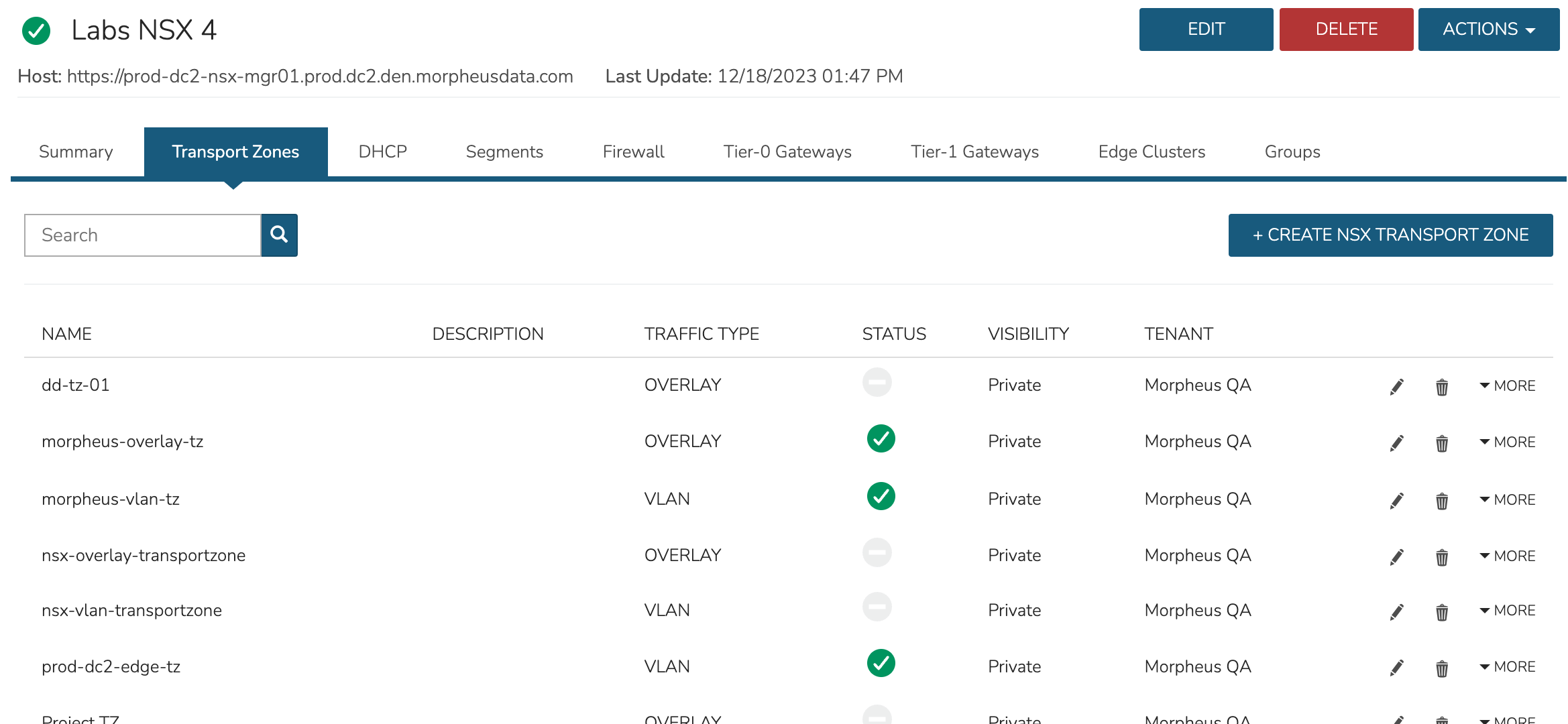
Access Transport Zones by selecting the Transport Zones tab. The default view of the Transport Zones tab lists Transport zones and presents some detail about them such as name, traffic type, status, and more. The integration allows for creation of new Transport Zones, editing and deleting.
DHCP
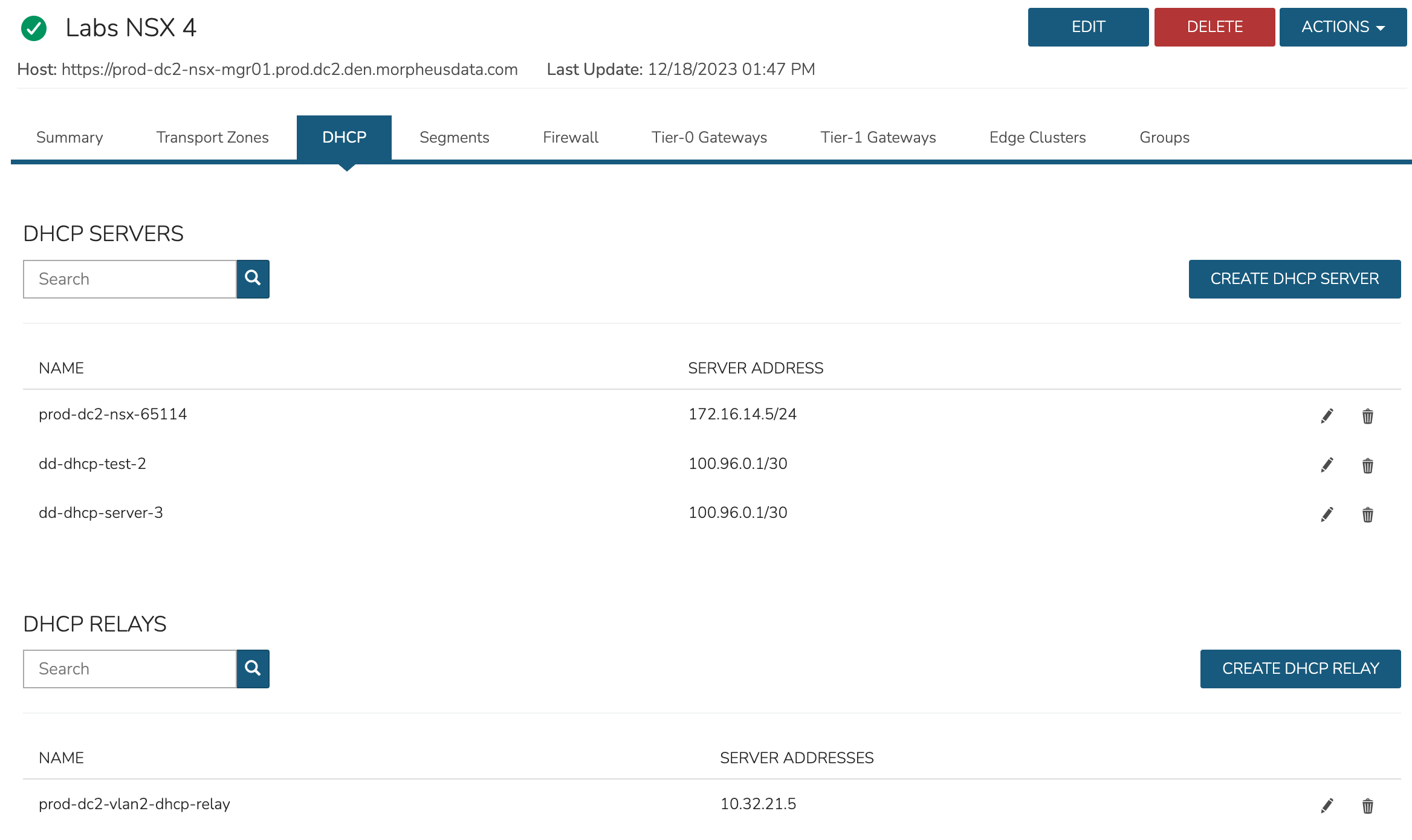
DHCP servers and relays are displayed on the DHCP tab. View information such as names and server addresses. The integration allows for creation of new servers and relays, editing and deleting.
Segments
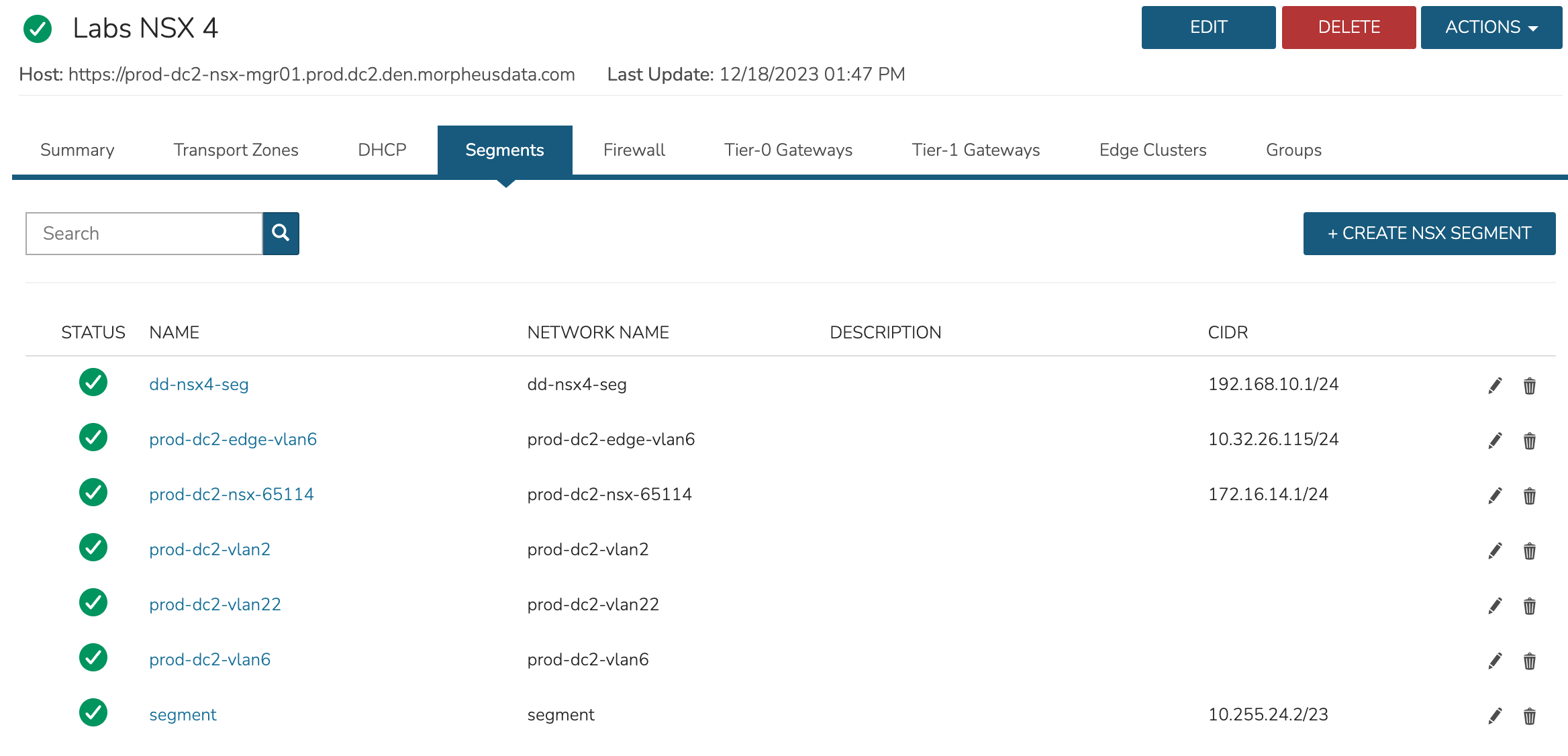
Access Segments by from the Segments tab. The summary view includes high-level information such as status, name, network name and CIDR. The integration allows for creating, editing and deleting NSX Segments
Firewall
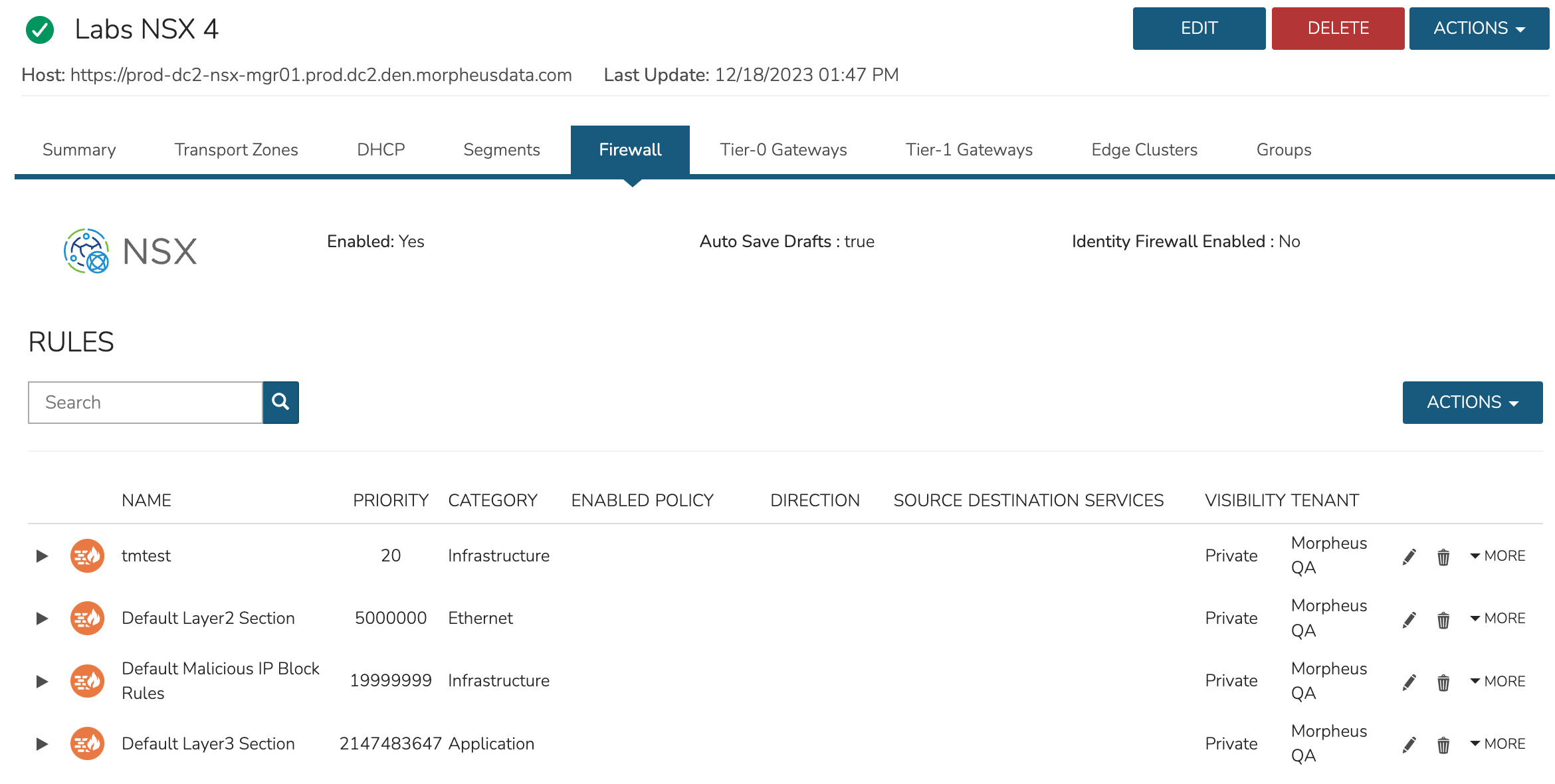
Firewall Groups and Rules are accessible from the Firewall tab. From the summary view, Groups can be expanded to view Rules within. From the ACTIONS menu, create new Groups by selecting “Create Group”. When a Group has been expanded, the “Create Rule” selection within the ACTIONS menu will also be accessible and a new rule can be created within the selcted Group. The integration allows for viewing, creating, editing and deleting Firewall Groups and Rules.
Tier-0 Gateways
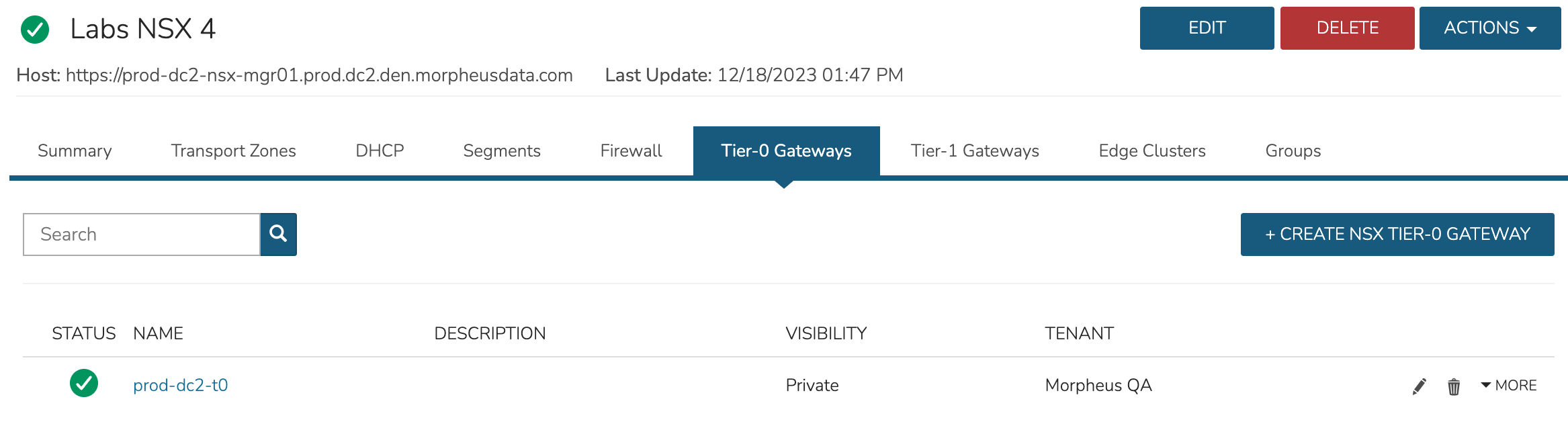
Access Tier-0 Gateways from the Tier-0 Gateways tab. The integration allows creating, editing and deleting Tier-0 Gateways.
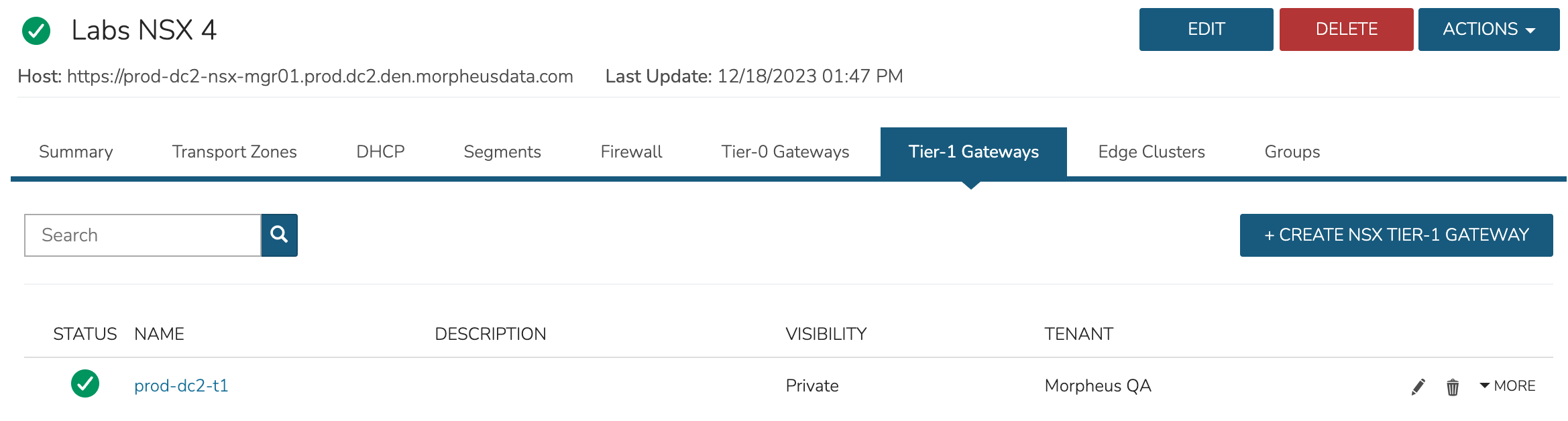
Tier-1 Gateways
Access Tier-1 Gateways from the Tier-1 Gateways tab. The integration allows creating, editing and deleting Tier-1 Gateways.
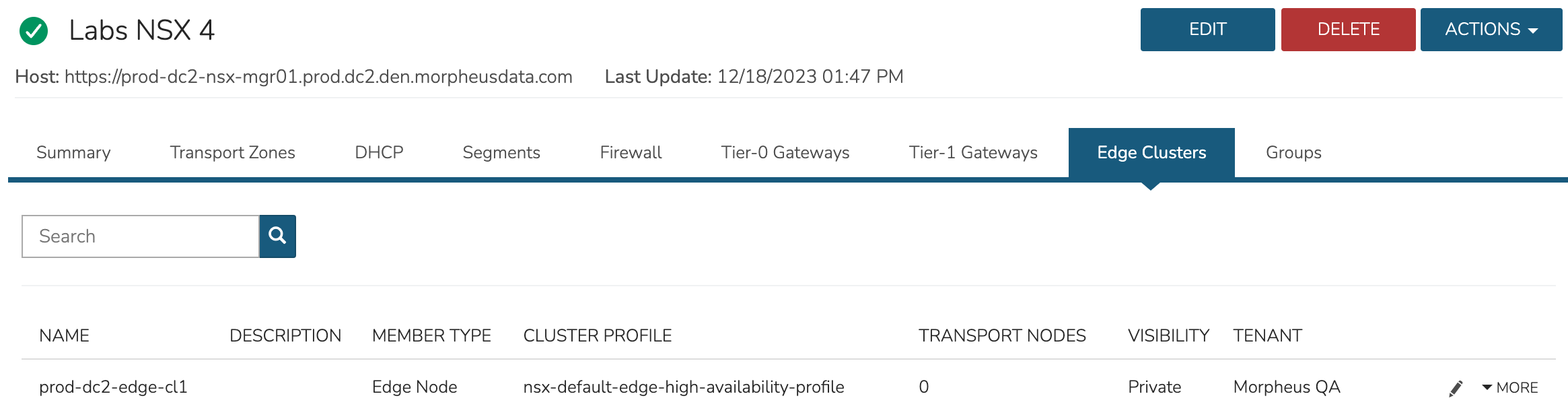
Edge Clusters
View Edge Clusters from the Edge Clusters tab. The default view lists each Edge Cluster with name, member type, cluster profile, and more. The integration allows viewing and limited editing of Edge Clusters.
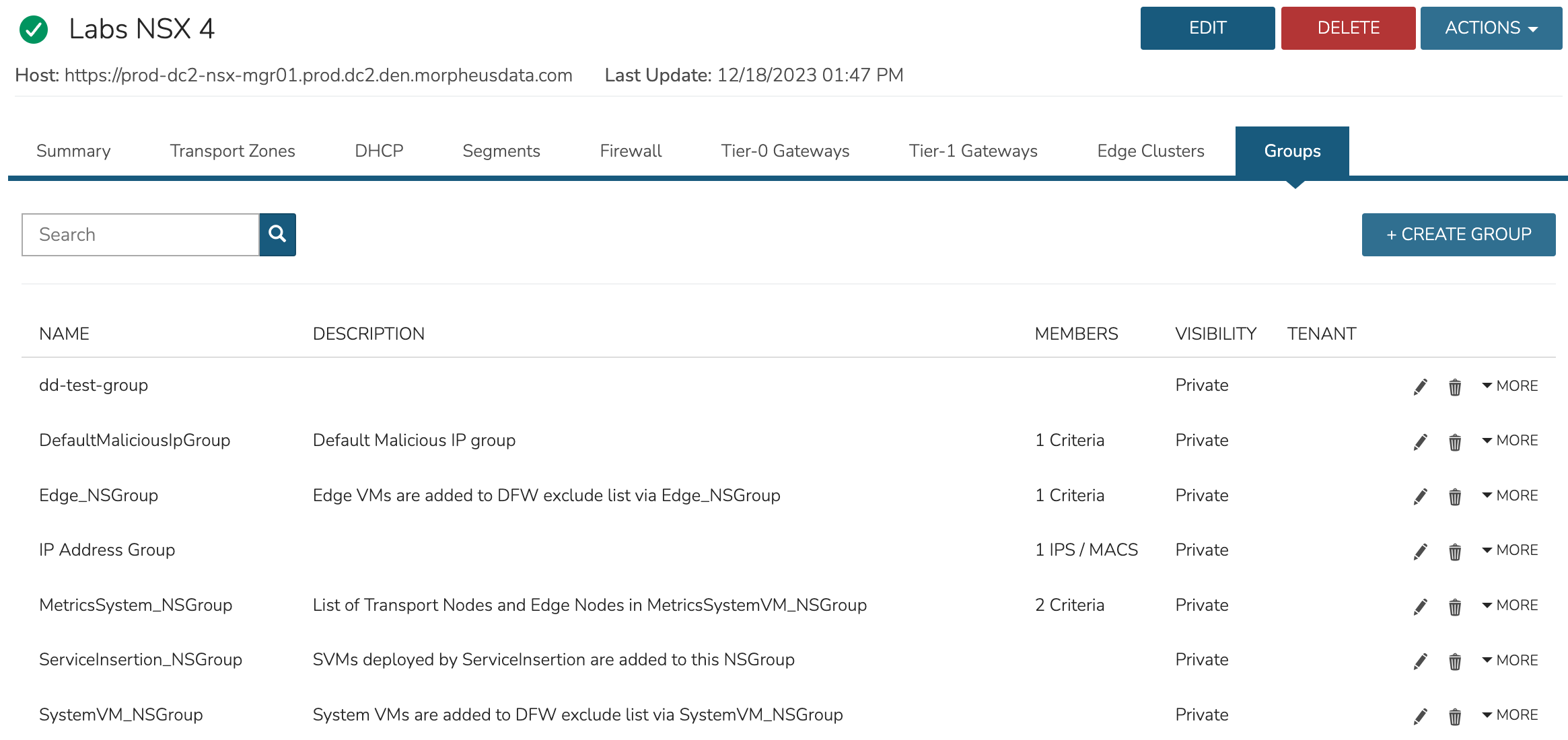
Groups
NSX Groups are viewed from the Groups tab. The default view lists each Group alone with member details. The HPE Morpheus Software NSX integration allows for creating, editing and deleting Groups.
DHCP Server Management
From the DHCP tab, DHCP servers can be created and managed:
Click + ADD in the DHCP Servers section
Configure the server name, server IP address, and lease time
Select an Edge Cluster to host the DHCP server
Click SAVE
Note
DHCP servers in NSX require an Edge Cluster for deployment. Ensure an appropriate Edge Cluster is available before creating DHCP servers.
DHCP Relay Management
DHCP relays forward client DHCP requests to remote DHCP servers:
Click + ADD in the DHCP Relays section
Configure the relay name and server addresses (the DHCP servers to forward to)
Click SAVE
Edge Cluster Configuration
Edge Clusters group edge transport nodes that host centralized services:
View Edge Cluster members and their transport node status
Edit Edge Cluster descriptions and visibility permissions
Edge Clusters are referenced when creating Tier-0/Tier-1 Gateways and DHCP servers
BGP Configuration on Tier-0 Gateways
Tier-0 Gateways support BGP for north-south routing. To configure BGP neighbors:
Navigate to
Infrastructure > Network > RoutersSelect the NSX Tier-0 Gateway
Click the BGP tab
Click + ADD to add a BGP neighbor
Configure the neighbor IP address, remote AS number, and optional settings (keepalive, hold-down, BFD, route filtering)
Click SAVE
See BGP Neighbors for detailed BGP neighbor configuration options.
Route Redistribution on Gateways
NSX Gateways support route redistribution to advertise routes between protocols:
Select the gateway router from
Infrastructure > Network > RoutersClick the Route Redistribution tab
Configure redistribution rules to share routes between connected, static, and BGP
See Route Redistribution for detailed route redistribution configuration.
NSX as a Security Integration
NSX also functions as a security integration through its distributed firewall capabilities. When configured as a security server on a Cloud:
Navigate to
Infrastructure > CloudsEdit the VMware Cloud associated with the NSX integration
In Advanced Options, set
SECURITY SERVERto the NSX integrationSecurity groups defined in NSX become available during provisioning
Firewall Rule Priority and Groups
NSX distributed firewall rules are organized into groups (sections) with ordered rules:
Groups define rule sections with a priority. Higher-priority groups are evaluated first.
Rules within groups have their own priority ordering.
Rules support source/destination based on IP addresses, NSX Groups, segments, or “Any”
Actions include Allow, Drop, and Reject
Troubleshooting
Issue |
Resolution |
|---|---|
Integration shows disconnected status |
Verify network connectivity between HPE Morpheus Software and the NSX Manager on port 443. Check the NSX service account credentials. |
Objects not syncing |
Force a sync from the integration actions menu. Verify the service account has sufficient privileges. Check for NSX API rate limiting. |
Project-scoped integration missing tabs |
This is expected. Project-scoped integrations only show DHCP, Segments, Firewall, Tier-1 Gateways, and Groups per NSX RBAC constraints. |
Firewall rule changes not taking effect |
NSX distributed firewall changes are applied immediately on save. Check rule ordering and ensure the rule is not shadowed by a higher-priority rule. |
BGP session not establishing |
Verify the neighbor IP is reachable from the Tier-0 gateway uplinks. Check Remote AS and authentication settings match the peer. |