The VM Console
The Host Console includes a browser-based viewer for a VM’s graphical console. It reuses your Host Console session, so no separate console password is required, and it reaches the VM through the host agent — your browser only needs to reach the host on port 7443.
Opening a Console
Click Open Console on a running VM, either in the list or in the detail view. The console opens in a new browser tab titled <vm-name> — Console.
Open Console is enabled only while the VM is Running. If the console cannot be reached after it opens, the viewer reports why:
The VM is not running.
The VM has no reachable graphical console endpoint (for example, no graphics device is configured).
The VM no longer exists on the host.
Console Toolbar
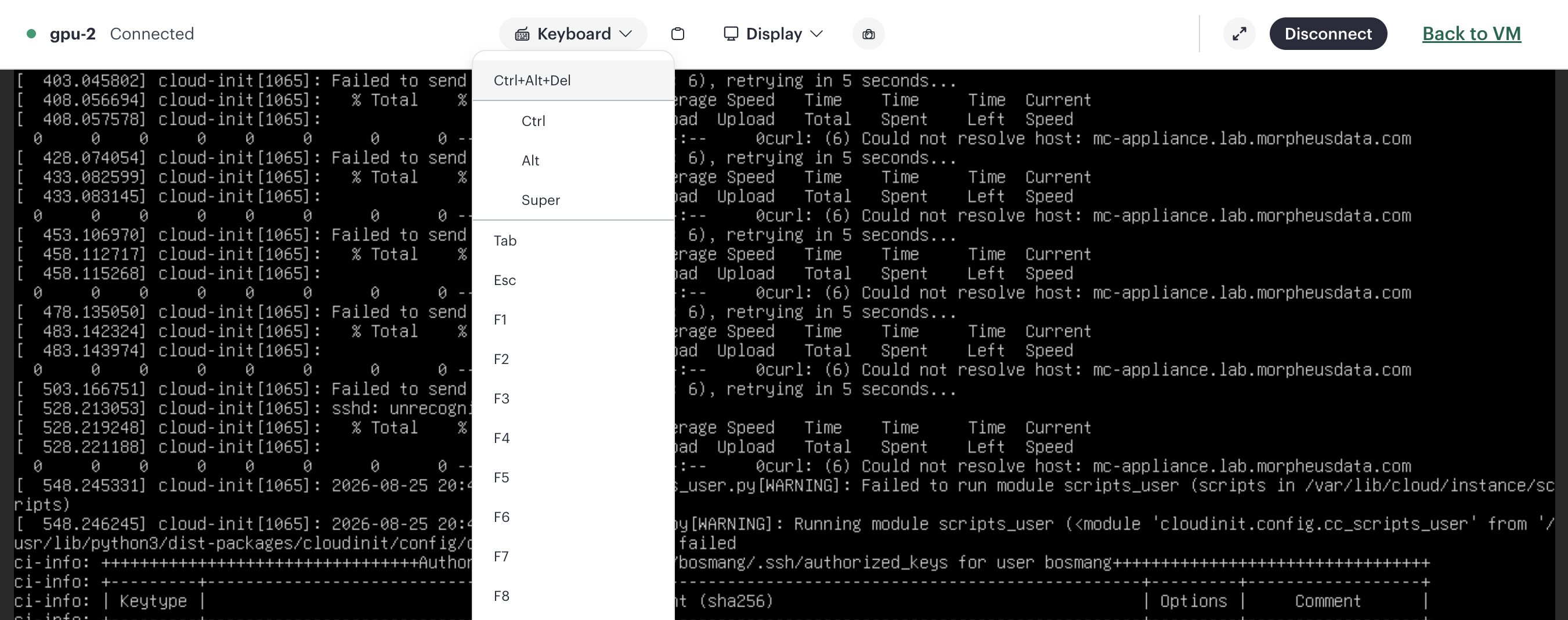
The toolbar along the top of the console provides:
Control |
Description |
|---|---|
Keyboard |
Send key combinations the browser would otherwise intercept — Ctrl+Alt+Del, sticky Ctrl / Alt / Super, and Tab, Esc, and the function keys. Use Release keyboard (or press Esc) to return keyboard control to the browser. |
Clipboard |
View and set the text sent to the VM’s clipboard |
Display |
Fit to window scaling, streaming quality (Low / Medium / High), and a View only mode that ignores local input |
Screenshot |
Save the current screen as a PNG file |
Connection |
Connection status, Fullscreen (where the browser supports it), and Disconnect / Reconnect |
Security Prompts
The first time the viewer connects to a VM it may prompt you to:
Enter the VM’s VNC credentials, if the guest’s console requires them.
Verify the console server’s fingerprint before trusting the connection.
Reconnecting
If the connection drops, the viewer attempts to reconnect automatically a bounded number of times. You can also reconnect manually from the Connection menu.